
Whatts App Patient onboarding
Healthbridge Nova now includes a new feature that enables clients to seamlessly complete their self-onboarding process subsequent to the confirmation of an appointment. This user-friendly functionality is initiated via WhatsApp and is designed to benefit both the medical practice and the patient.
How to set up/ Activate the feature on Healthbridge Nova
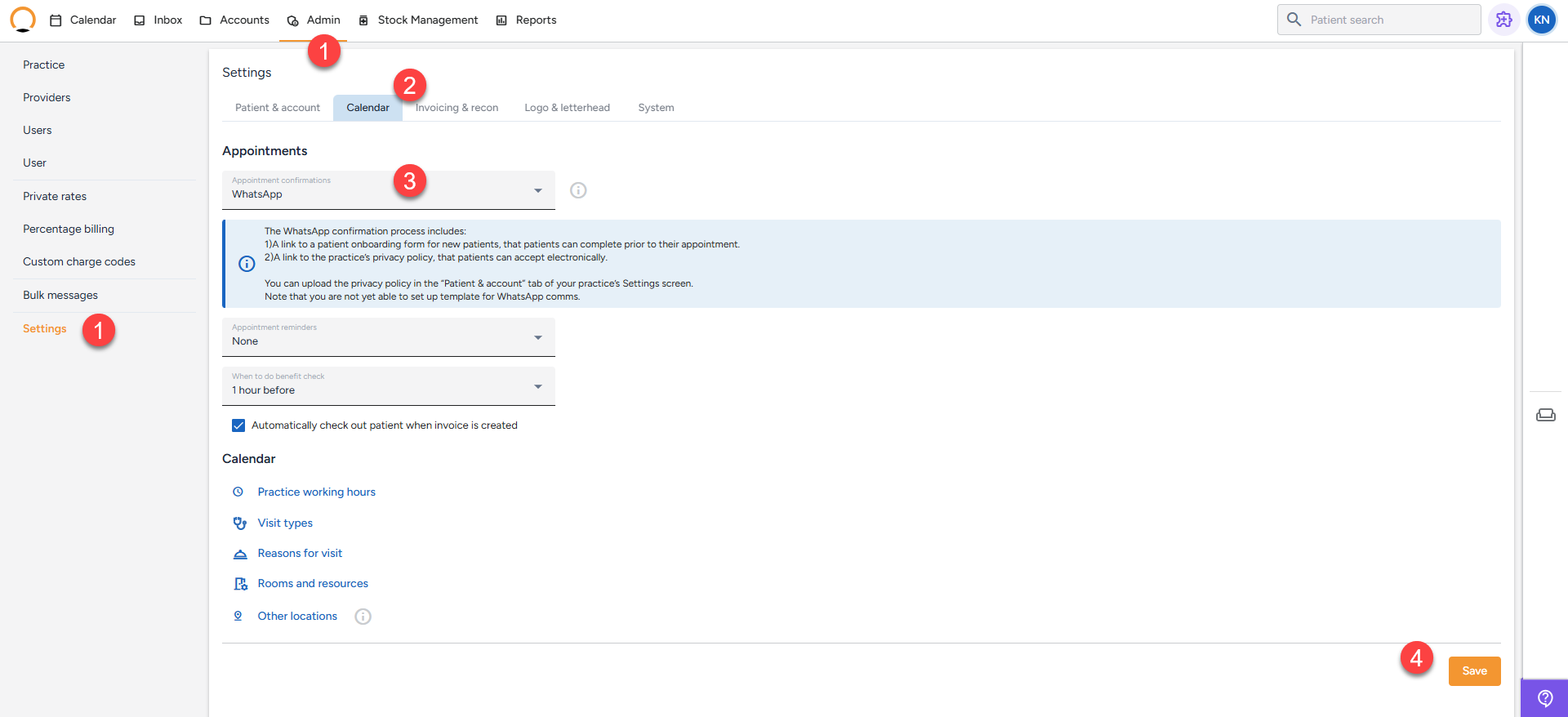
- Navigate to the “Admin” Tab and click on “settings”.
- Select the “calendar” option.
- From the dropdown options avalible for "Appointments" select WhatsApp.
- Click on “Save” to finalise the changes.
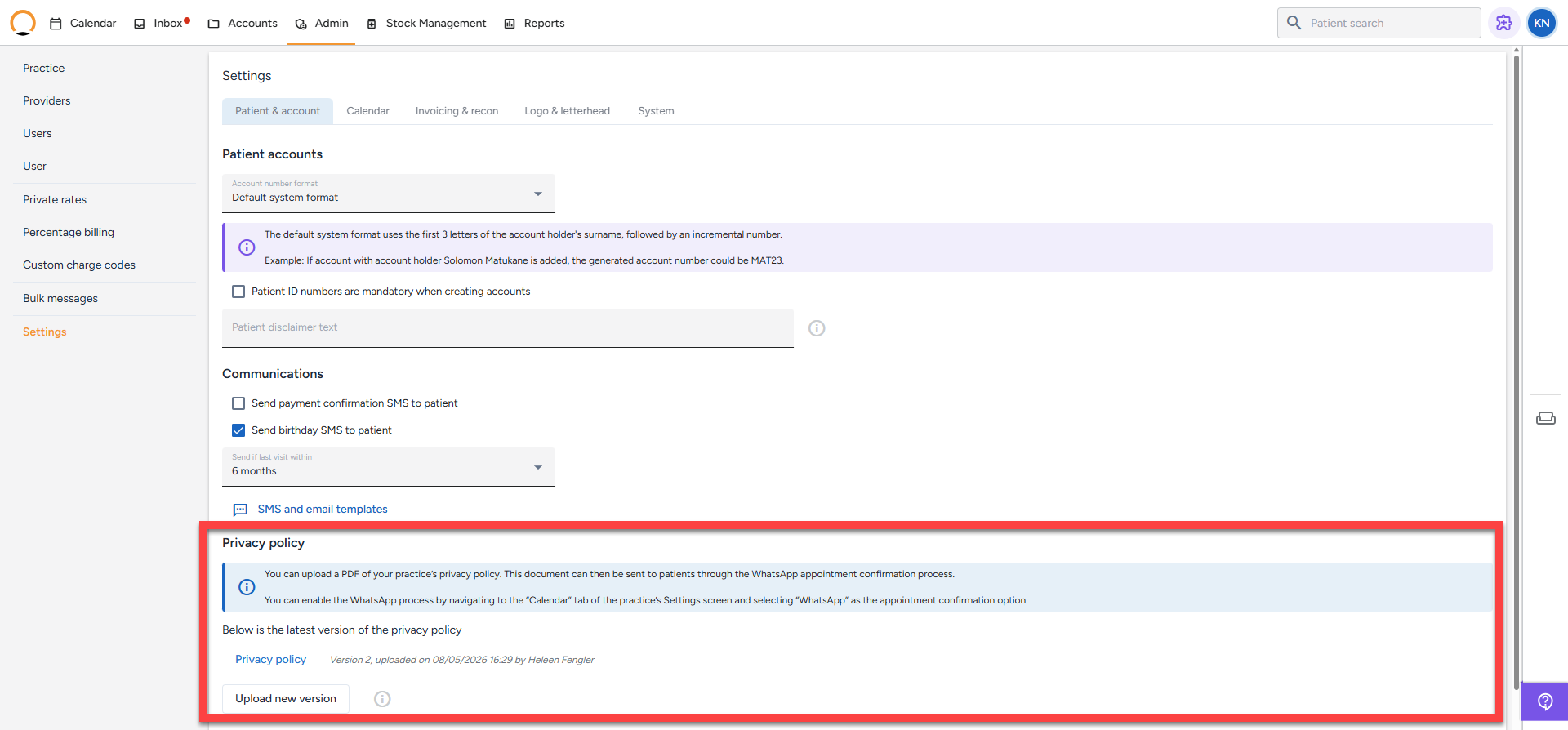
Optional: Upload your practice's privacy policy under the Admin settings. If a privacy policy is uploaded, patients will be prompted to read and accept it as part of the onboarding form. If no privacy policy has been uploaded, the consent step will be skipped.
How the Onboarding Workflow Works
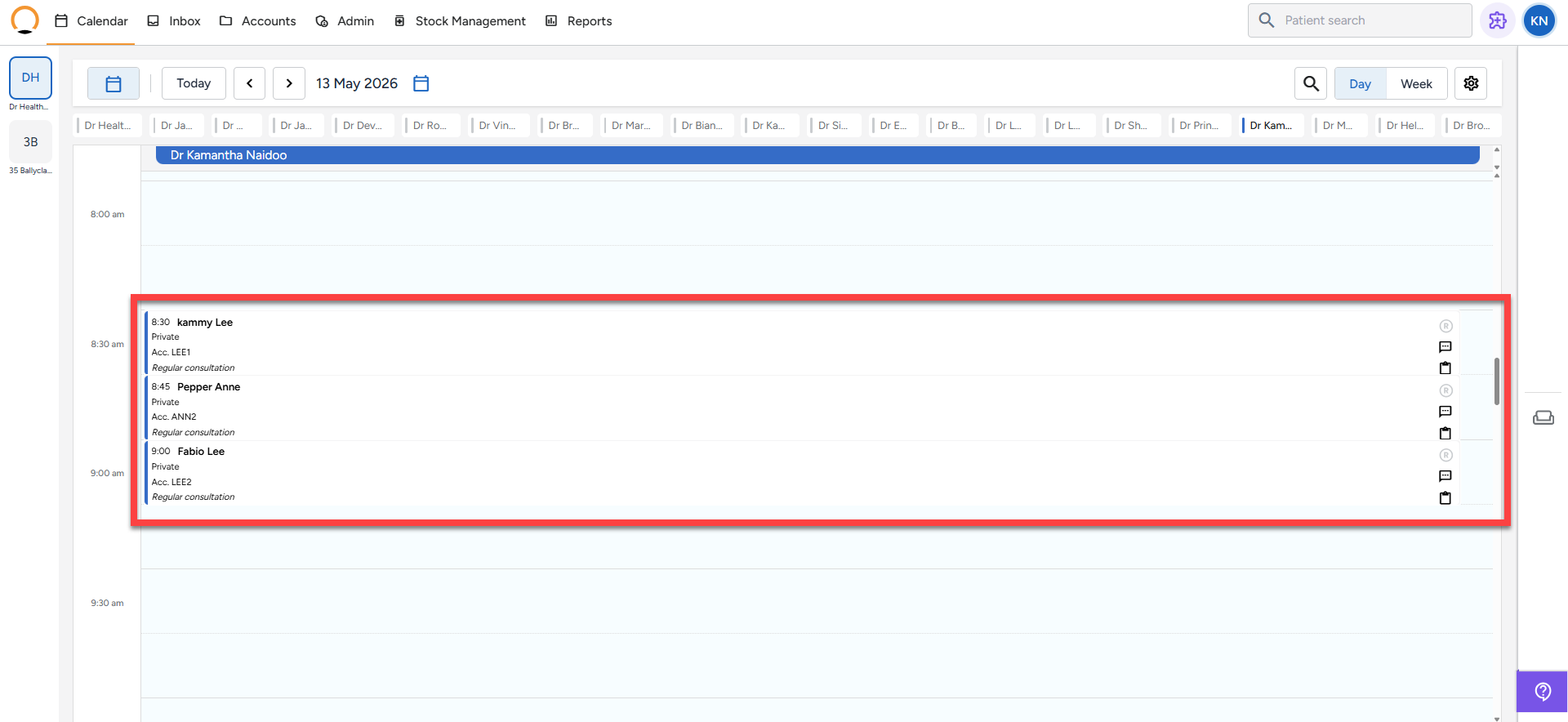
Step 1 - Book the appointment - Navigate to the calendar and book the patient's appointment as you normally would. No additional steps are required at the time of booking.
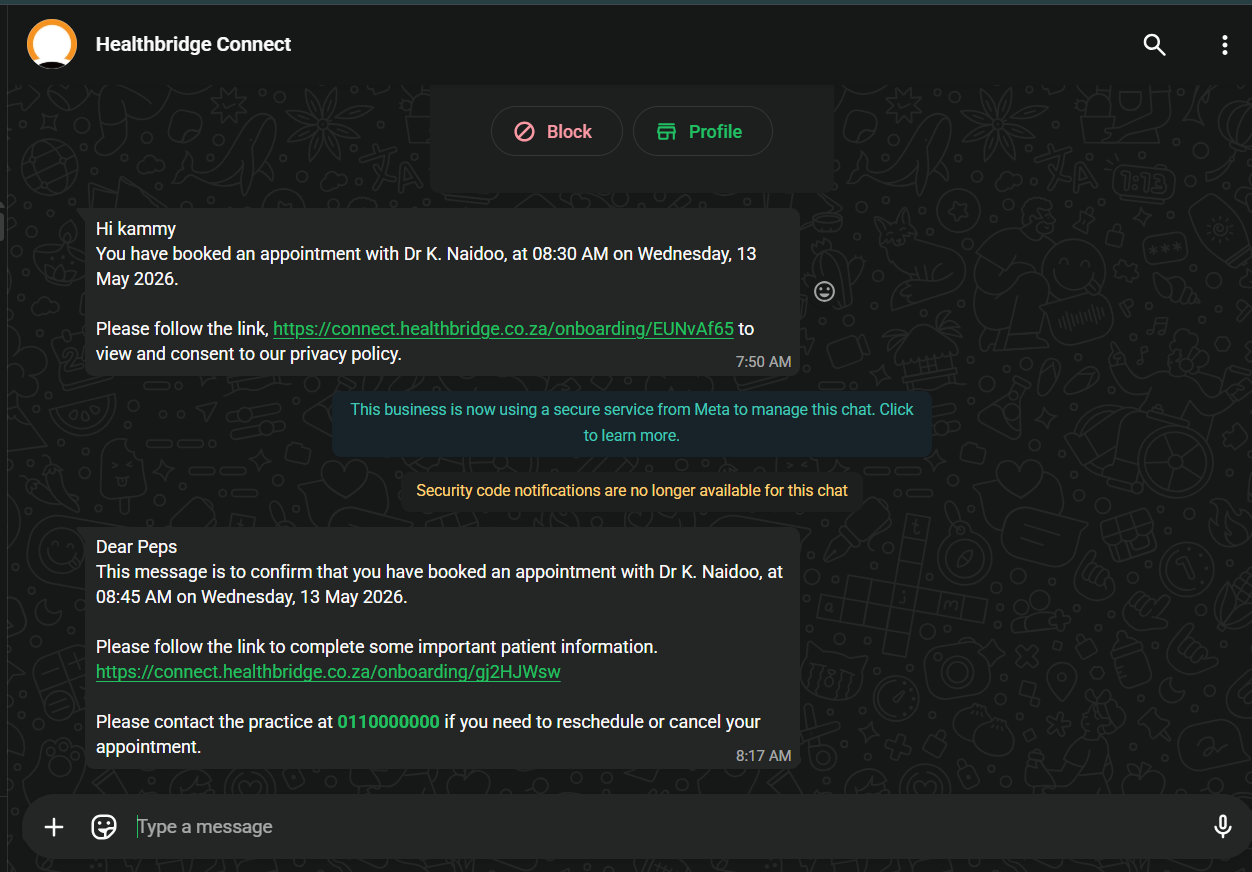
Step 2 - Patient receives a WhatsApp message - Once the appointment is confirmed, the patient automatically receives a WhatsApp message. The message contains a brief notification about their appointment and a link to complete their onboarding.
The Onboarding Process
Scenario 1 - New Patient (No Privacy Policy Uploaded)
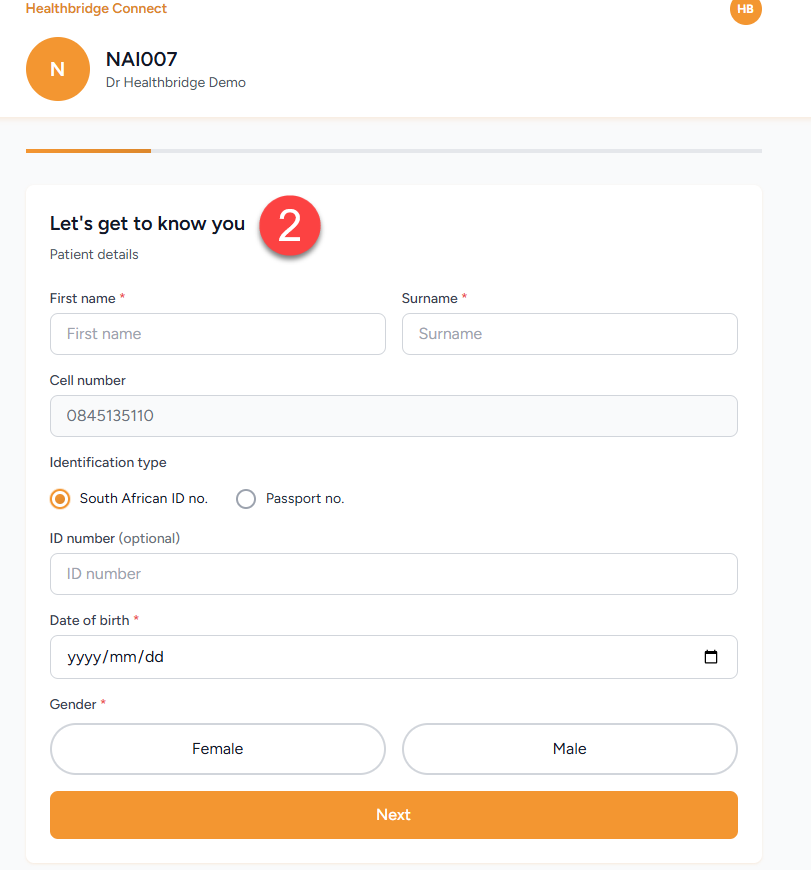
The patient is presented with a form to complete their personal details. No consent step is included thus the patient will follow the following steps:
- Click the link to access the form.
- Complete their patient details (name, date of birth, gender).
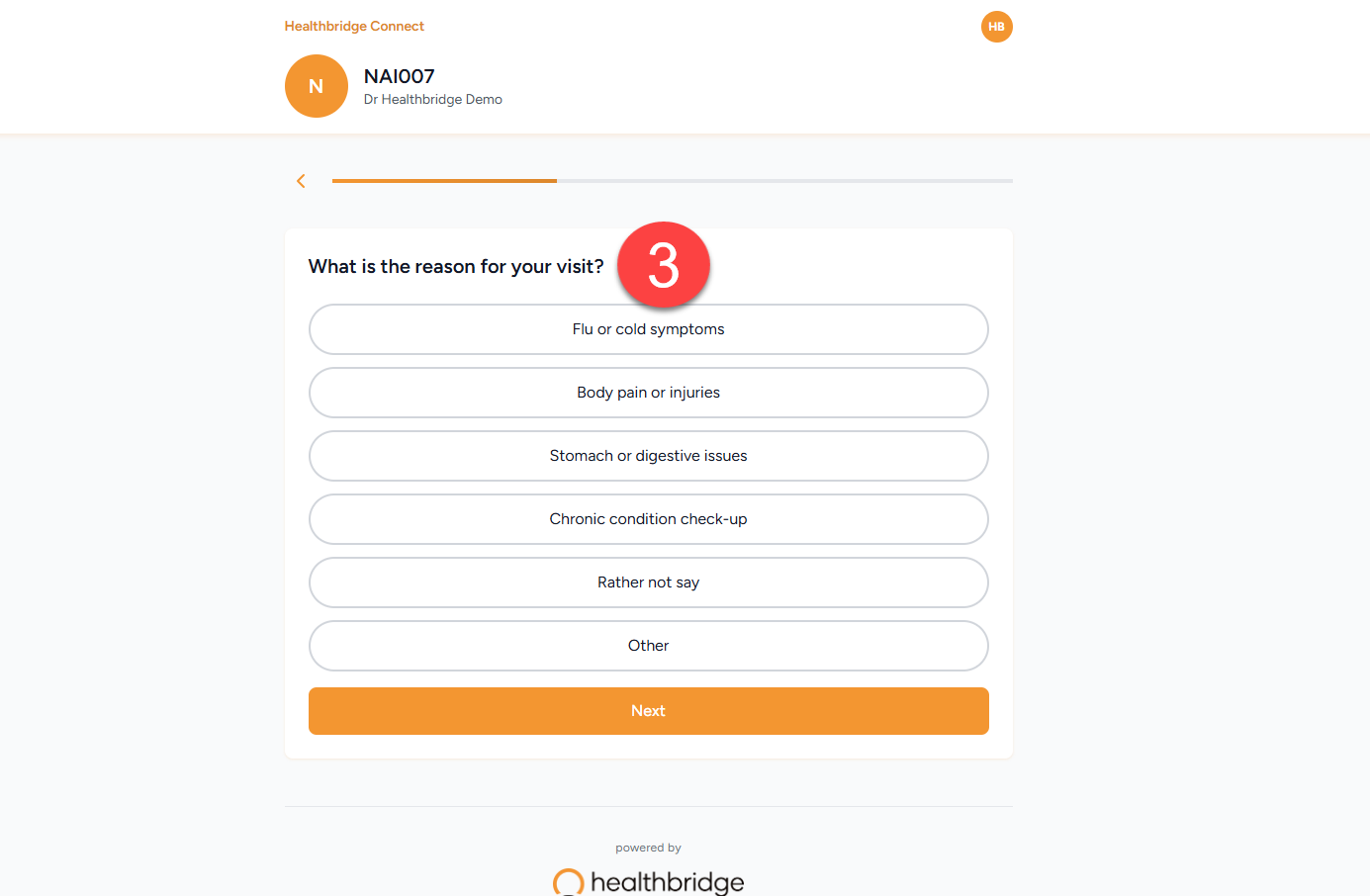
- Add a reason for the visit.
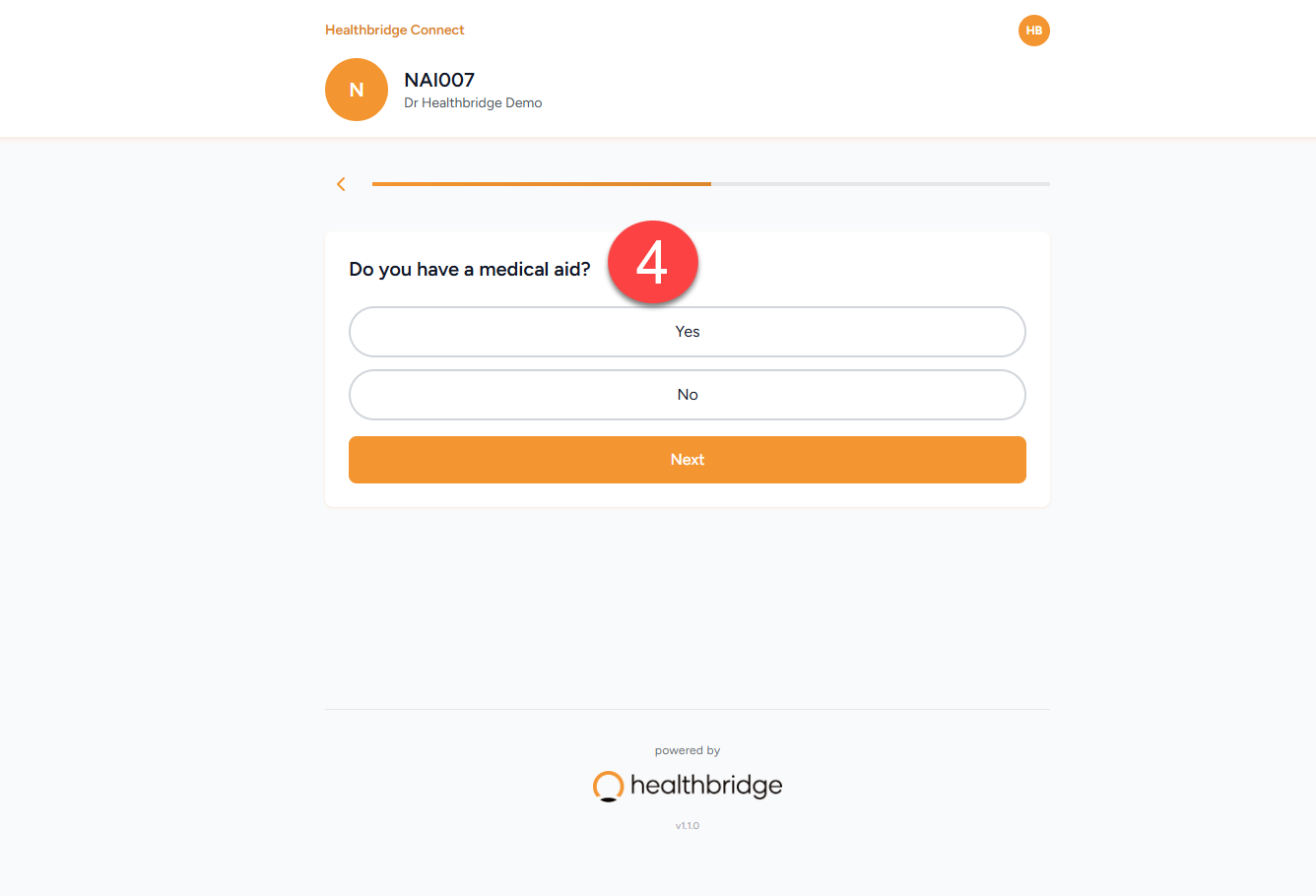
- Select Medical Aid or Private and supply the relevant details.
- Submit the form.
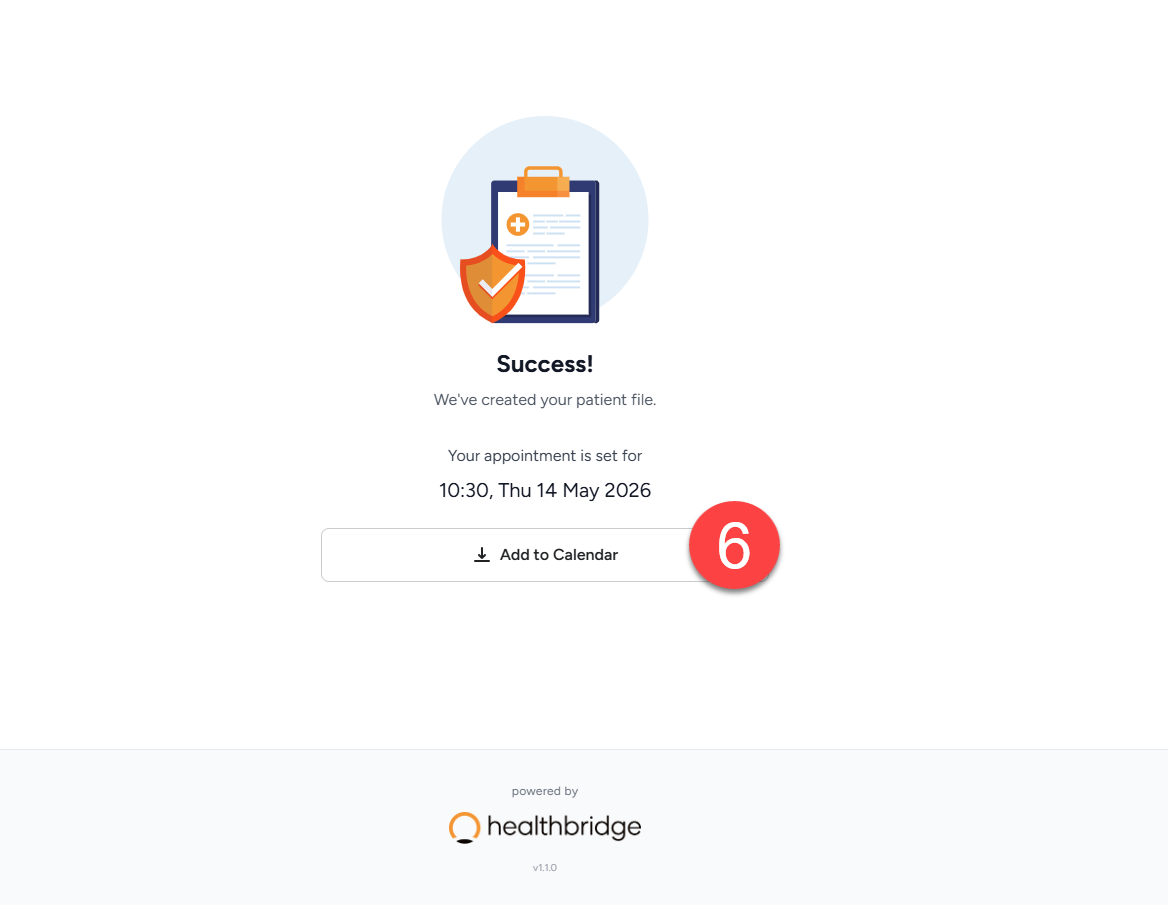
- Optionally, add the appointment to their personal calendar.
Scenario 2 - New Patient (Privacy Policy Uploaded)
The same form as Scenario 1, with the addition of a privacy policy consent step.The patient will follow the following steps and include the consent form step:
- Click the link to access the form.
- Complete their patient details (name, date of birth, gender).
- Add a reason for the visit.
- Select Medical Aid or Private and supply the relevant details.
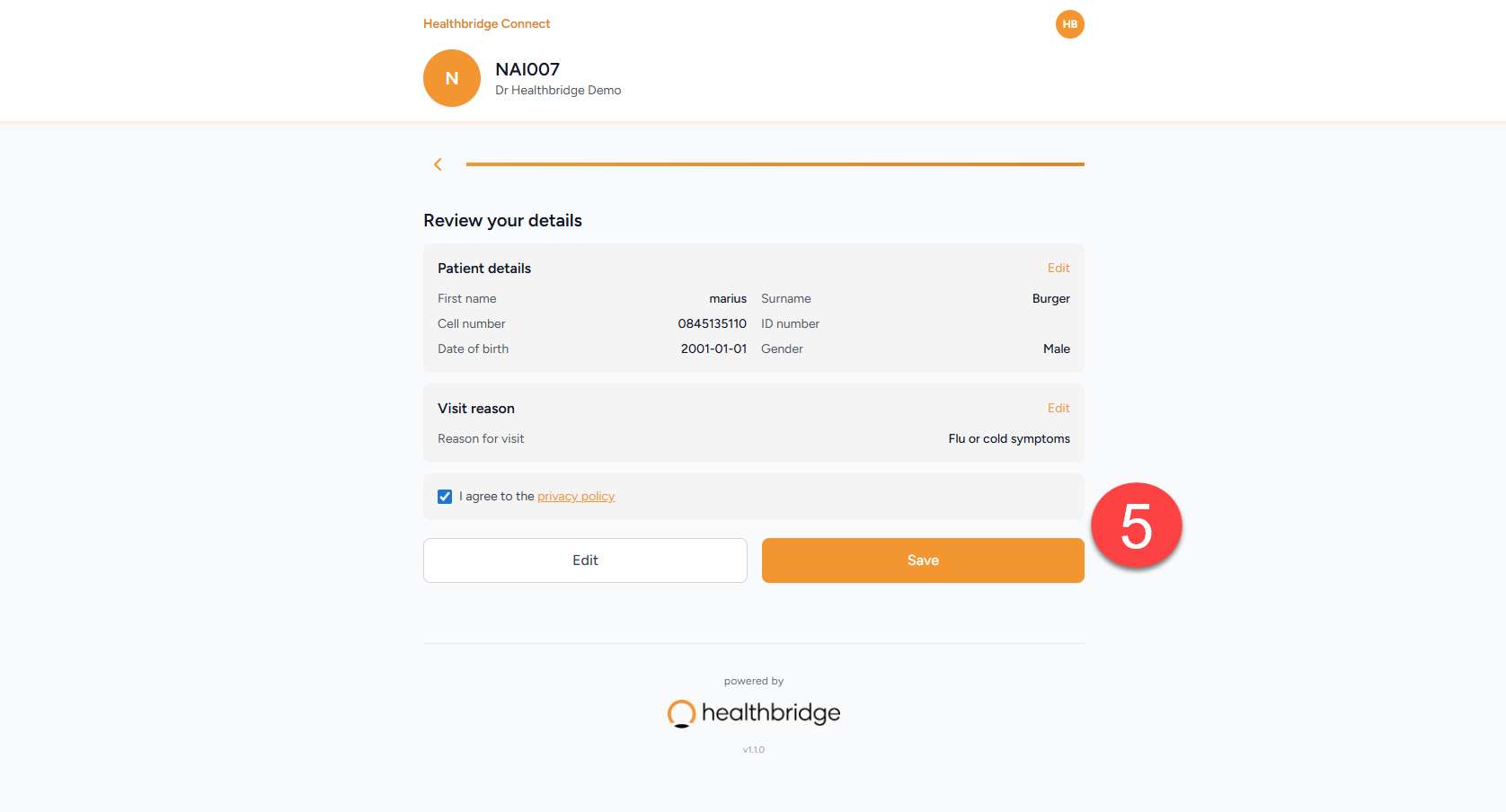
- Read and accept the practice's privacy policy.
- Submit the form.
- Optionally, add the appointment to their personal calendar.
Scenario 3 - Existing Patient (Privacy Policy Uploaded)
For existing patients, no personal information update is collected. The form simply requests acceptance of the practice's privacy policy.
The patient will:
- Click the link to access the form.
- Read and accept the practice's privacy policy.
- Submit.
What Happens in Nova After Submission
Once the patient submits the form, the information is written back to Nova:
- The patient record is updated with the submitted details (name, date of birth, gender).
- If a medical aid was provided, those details are recorded.
- The patient's consent to the practice's privacy policy is recorded in the practice settings for that patient.
- The patient will still display as a New Patient in the system until their account is fully completed.
Watch a eay to understand video here