How to setup Invoice Templates
Here is a step-by-step guide to creating an invoice templates in Healthbridge Nova, There are currently multiple ways to create these templates.
Method 1 - Capturing an Invoice
Step 1: Initiate an Invoice either by the 'Check-Out' system after a completed appointment, or from the 'Accounts' tab, search for a patient and select 'Capture Invoice'.
Step 2: Fill in the required fields for the invoice, including the Place of Service, Treating Provider, and the Invoice Type (Cash or Medical Aid).
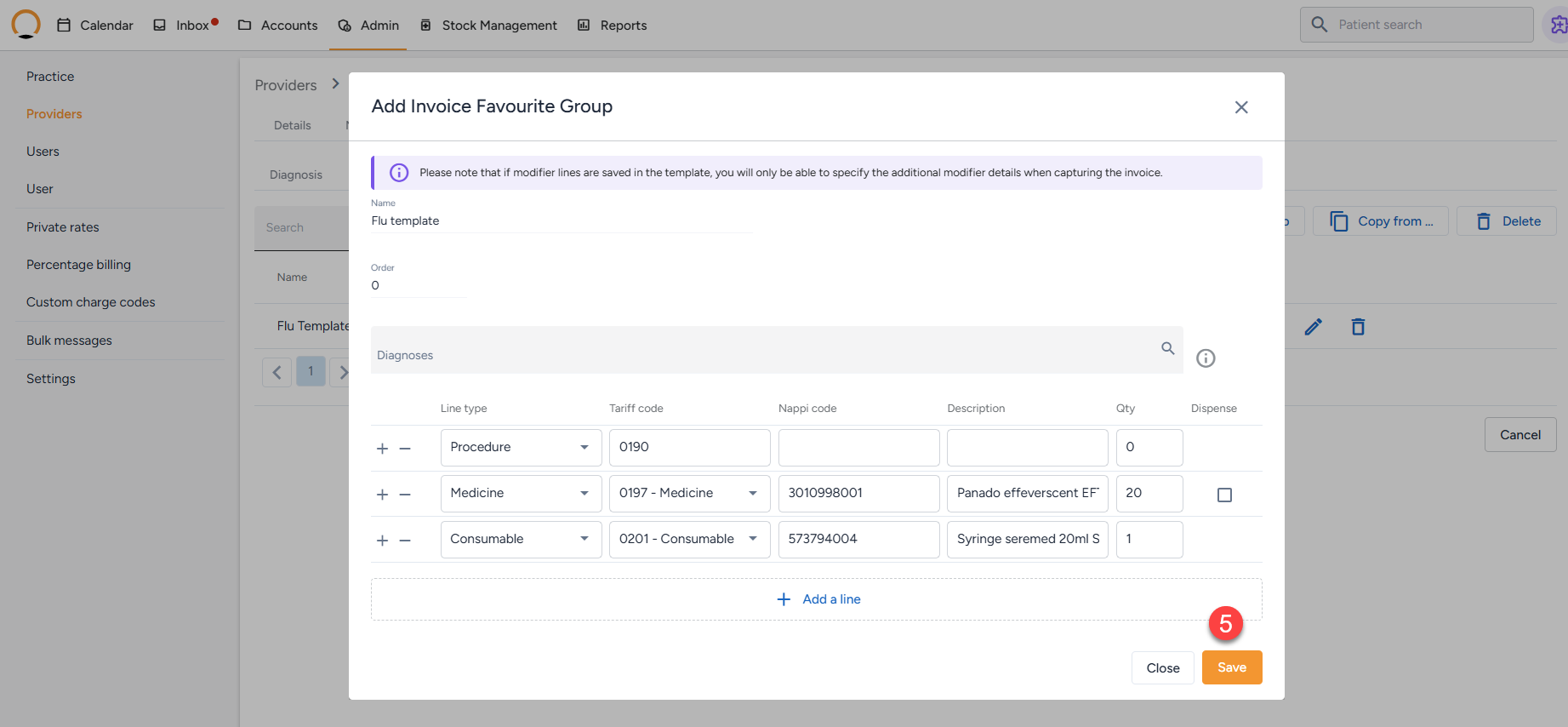
Step 3: Complete the specific details you want to save for future use. This includes Diagnosis Code (ICD 10 code), and the Invoice Line Items, which cover the Line Type, Tariff Code, Nappi Code (for any medicines or consumables), and the specific quantities.
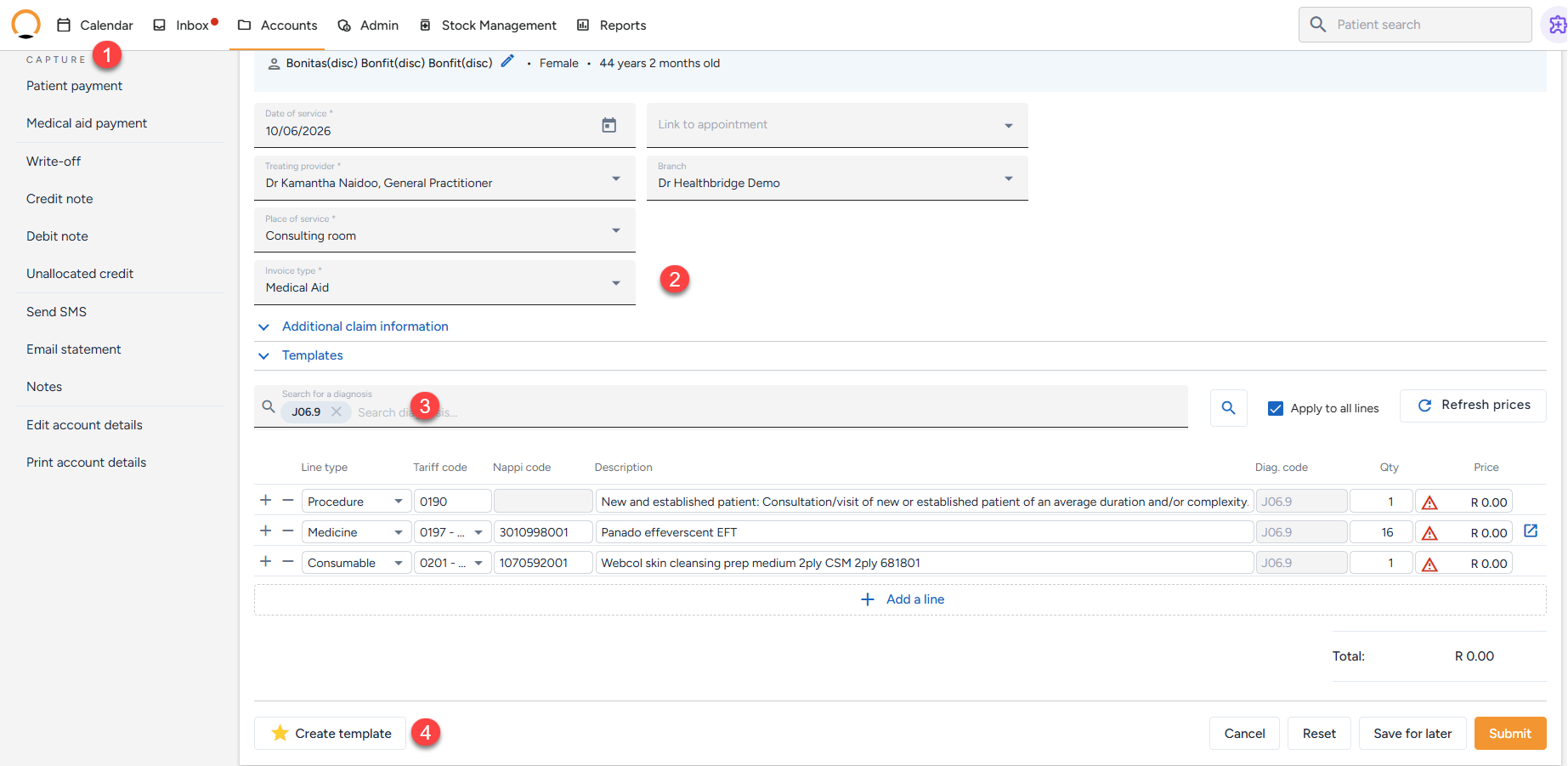
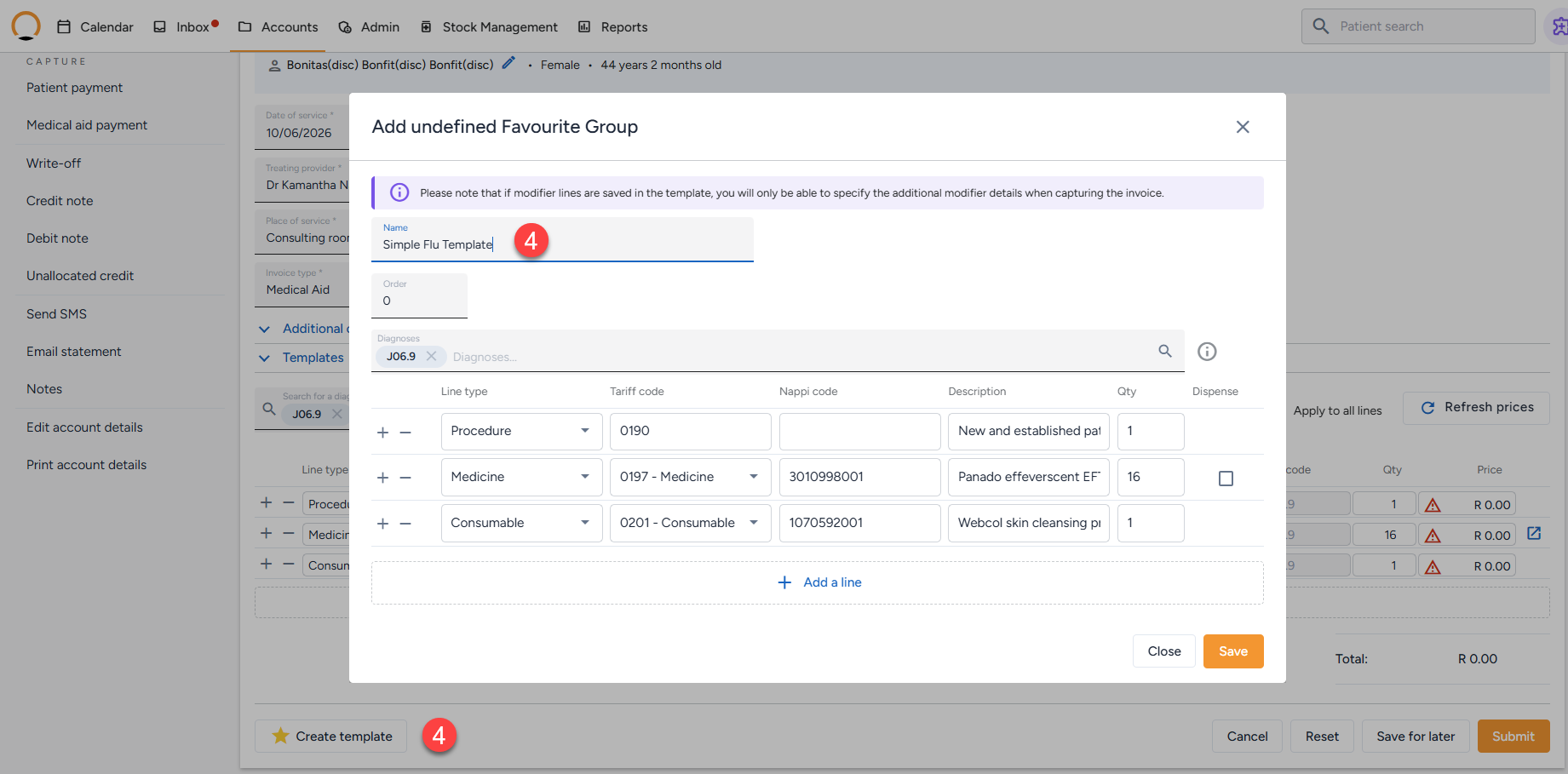
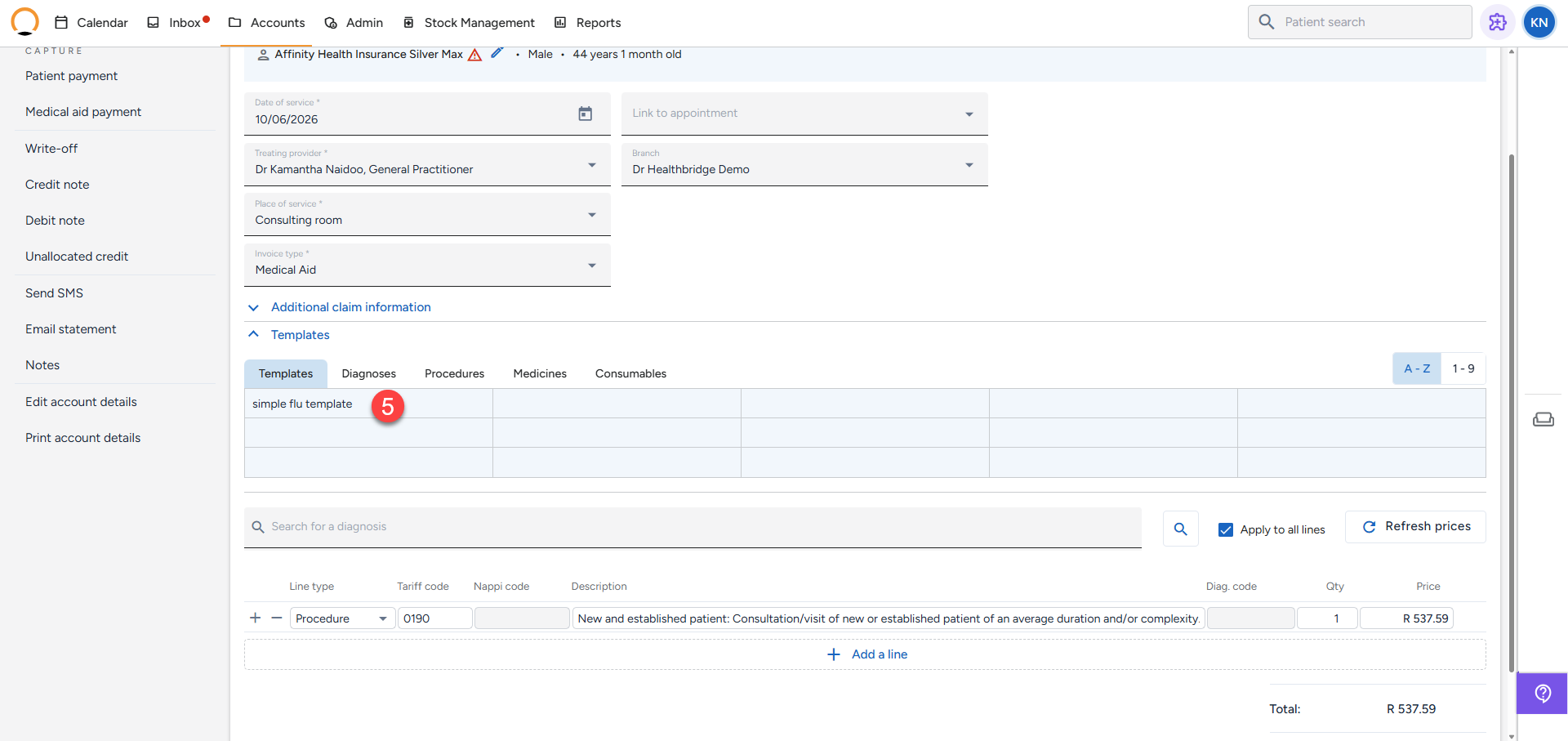
Step 5: Once saved, the next time you process an invoice for this specific treatment, you can simply select this template to automatically fill in all the line items and relevant prices.
Method 2 - Directly from the provider tab
Step 1: Log in to Healthbridge Nova and click on the 'Admin' tab in the top menu. Select 'Providers' from the left-hand panel.
Step 2: Select/Search for the specific provider and open their profile.
Step 3: Navigate to the Templates Tab Once the provider's profile details are open
Step 4: The user can create predefined templates specifically for Diagnoses, Procedures, Medicines,Consumables or Invoices that will be linked to this provider.
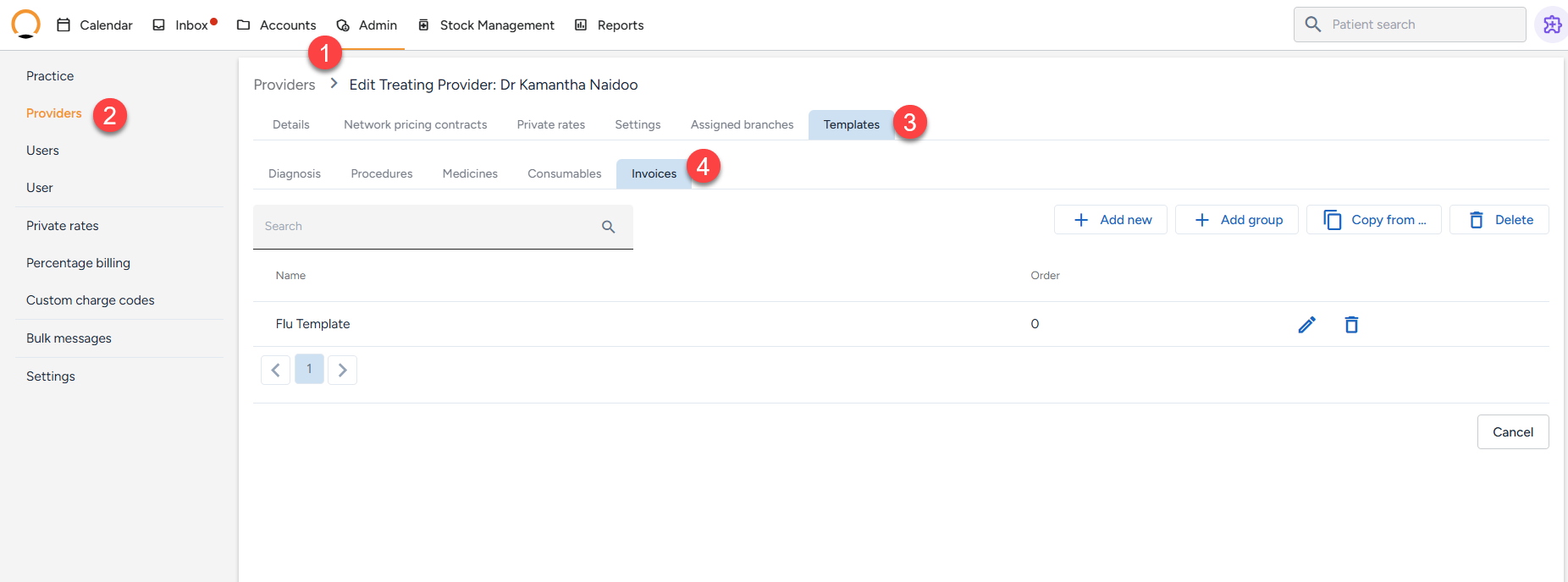
Step 5: After selecting the template type, click "Add New" to create the template. Assign a name and include the relevant line items. Finally, click "Save" to make the template available for capturing invoices.
How to copy Templates from other providers within the practice.
If there are multiple providers at the practice, and these templates should be available for everyone, the practice can easily copy the templates from one provider to another.
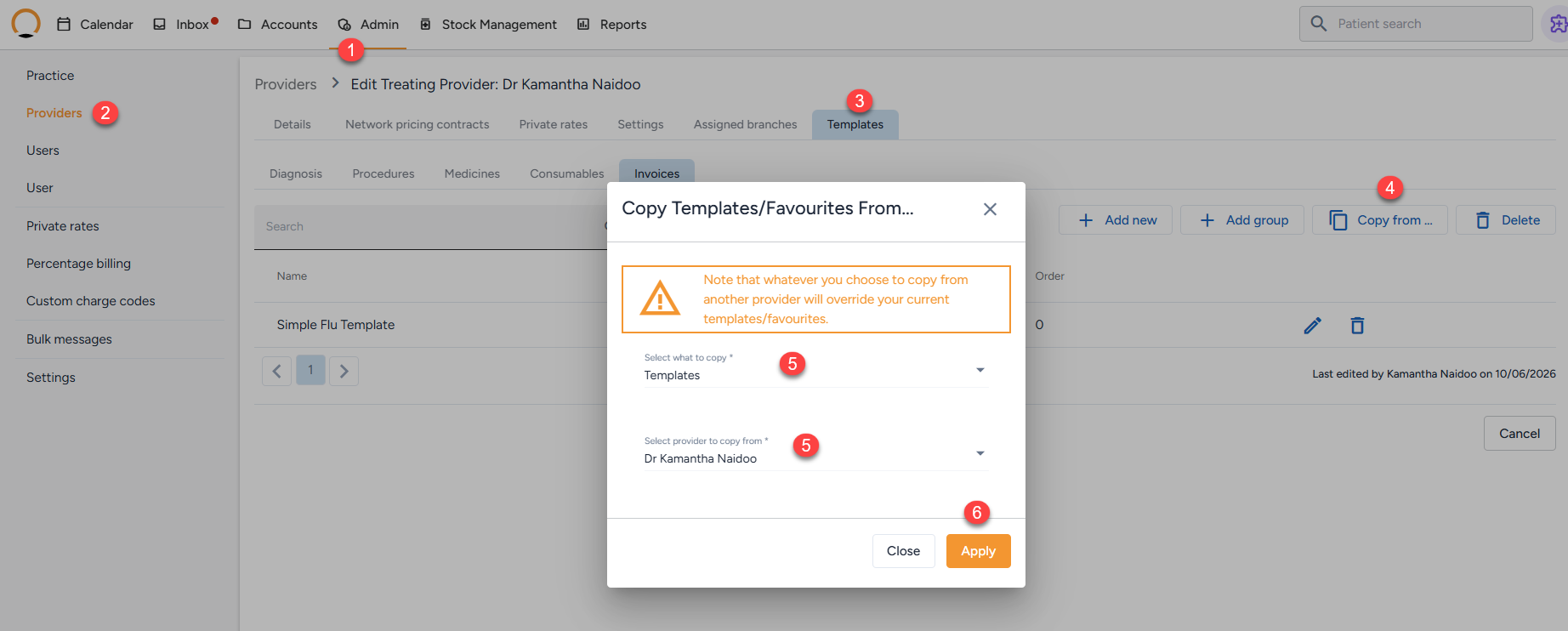
Step 1: Log in to Healthbridge Nova and click on the 'Admin' tab in the top menu. Select 'Providers' from the left-hand panel.
Step 2: Select/Search for the specific provider and open their profile.
Step 3: Navigate to the Templates Tab Once the provider's profile details are open
Step 4: Select the "Copy from" option avalible.
Step 5: Choose "Templates" from the "What to Copy" menu, then select the provider you wish to copy from under the "Provider to Copy From" option.
Step 6: Click "Apply" to transfer the templates from one provider to the selected provider.
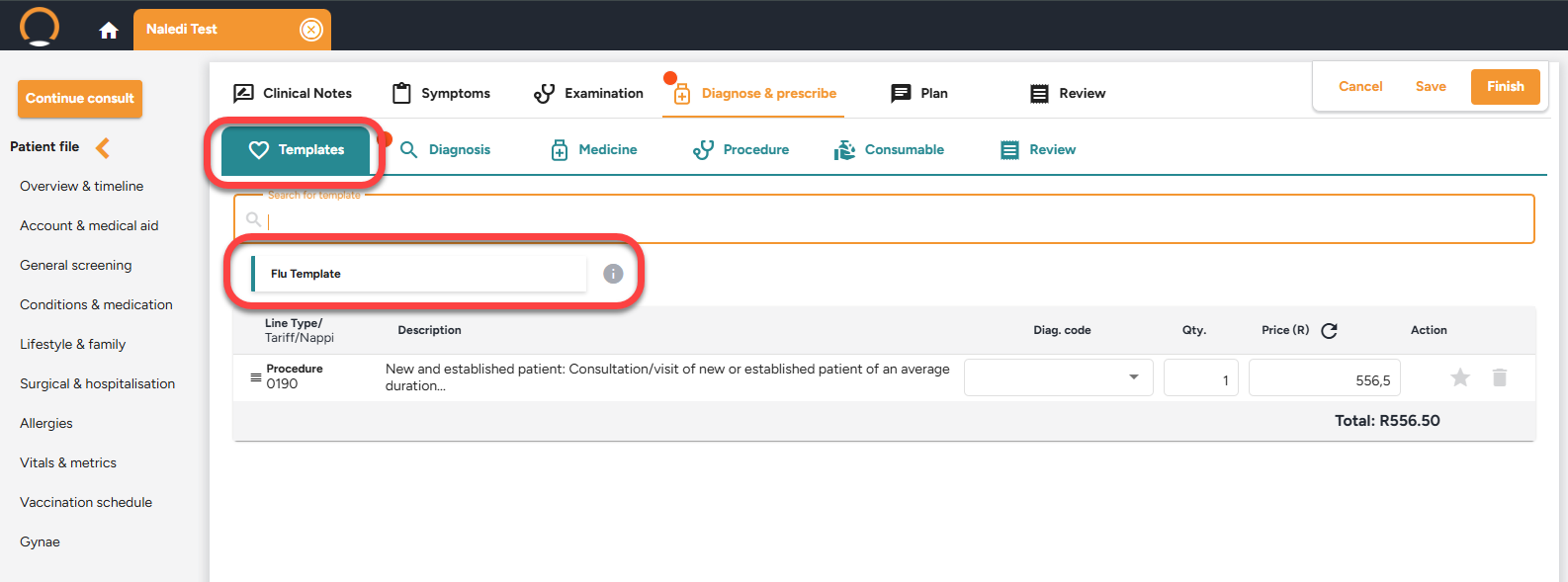
NOTE: These templates automatically sync with Healthbridge Clinical, allowing for easy access during consultations or encounters.