
How to set up appointment reminders and confirmation templates linked to specific visit types
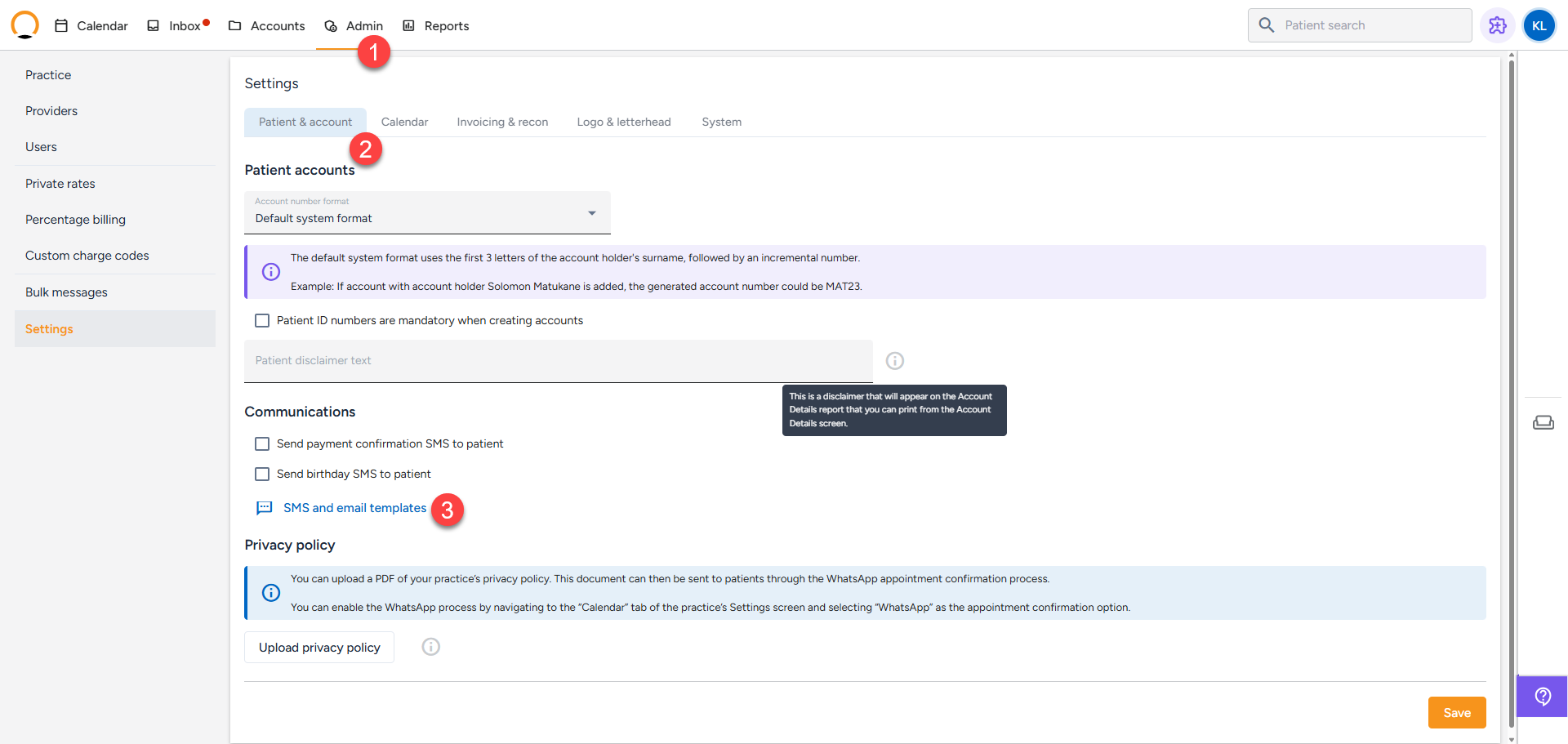
- Navigate to the “Admin” tab and select “Settings”.
- Within the “Settings” menu, locate and select “Patient and account”.
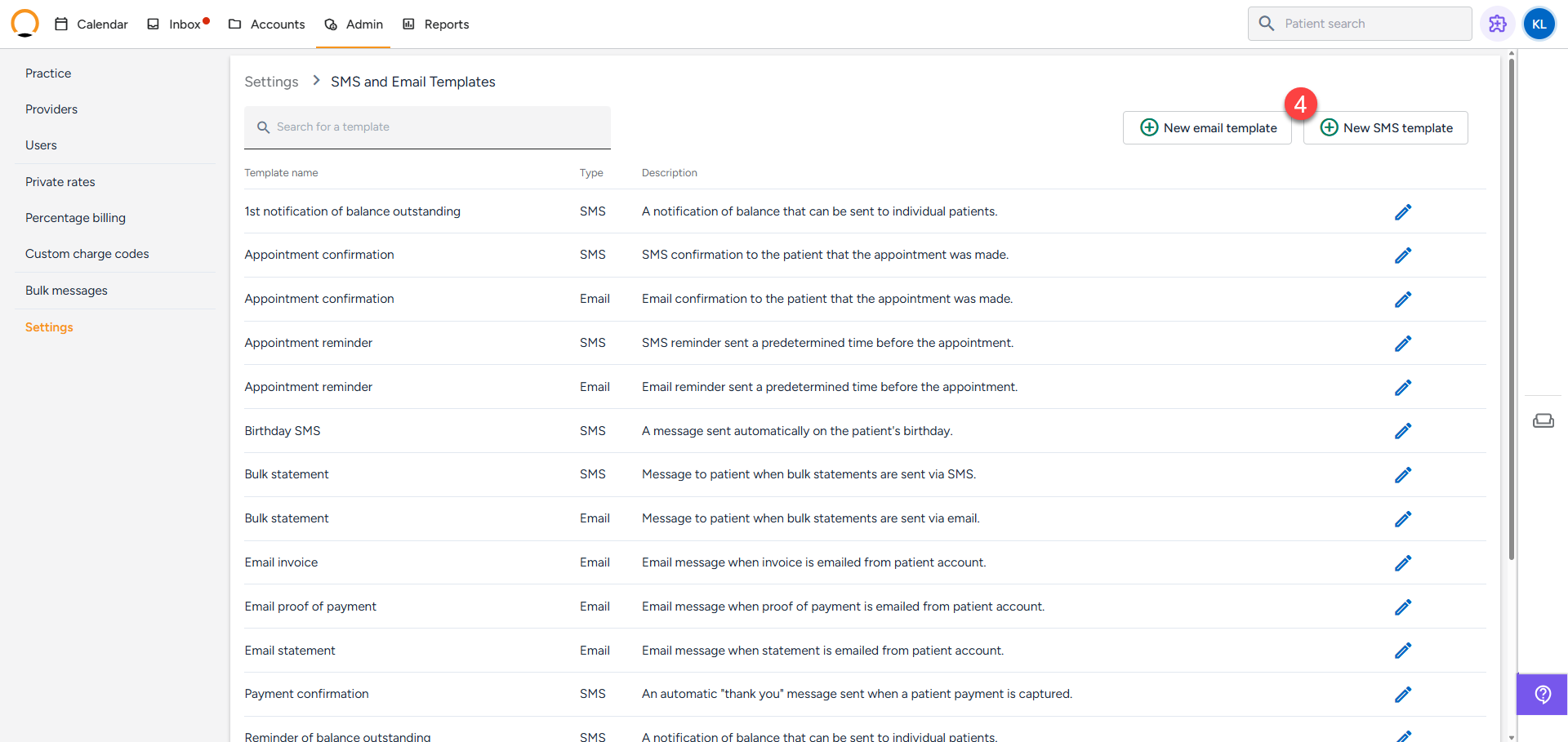
- Select “SMS and email templates”.
- Choose “New email template" or “New SMS template” as required.
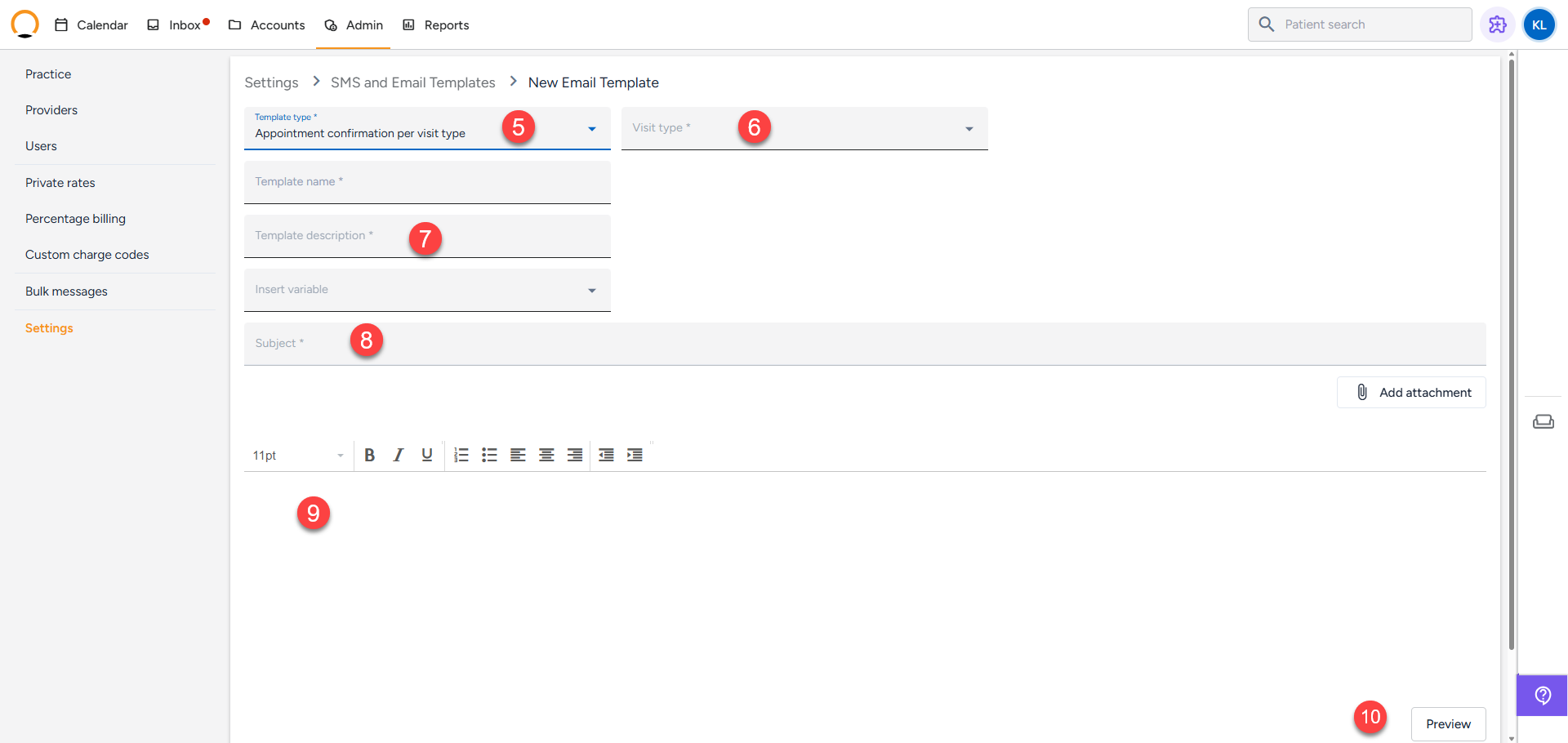
- In the “Template Type” dropdown, select either “Appointment confirmation per visit type” or “Appointment reminder per visit type”.
- Select the applicable “Visit Type" from the dropdown menu.
- Enter a “Template description” to facilitate easy identification.
- Compose the “Subject” line; you may select a variable or enter custom text.
- Draft the message content. Use the “Insert variable” dropdown for personalization and the “Add attachment” option to include necessary documents.
- Click “Preview” to review the message with populated variables, then click “Save” to finalize.
Note : Please monitor the character limit warning when configuring SMS templates, as messages exceeding 160 characters may incur additional billing charges.