
How to Book and Join a Telehealth Appointment
How to Book and Join a Telehealth Appointment
What: A video-consultation appointment type in Healthbridge Nova that gives both provider and patient a browser-based video link, with no app to download.
Why: It lets a medical professioanls see a patient remotely, useful for follow-ups, chronic care check-ins, or any consultation that doesn't need the patient in the room.
When: When booking an appointment that will be conducted over video instead of in person.
Book the appointment
Booking a telehealth appointment works exactly like booking a normal one, the only difference is the visit type you select.
1. Open the appointment form for the patient
Location: Calendar › click an available time slot › search for and select the patient
Click 'Calendar' in the top navigation bar, then click an empty slot for the treating provider. Search for the patient and select them the same way as any other appointment — see How to add an appointment to the Calendar for the full walkthrough of this part.
2. Set the Visit type to 'Telehealth video'
Location: appointment form › 'Visit type' dropdown
Open the Visit type dropdown (it defaults to 'Regular consultation') and select 'Telehealth video'.

Not the same as 'Video consult': The dropdown lists both 'Video consult' and 'Telehealth video' as separate options. Select 'Telehealth video' specifically, that's the one that generates the join link covered in this guide.
3. Complete the rest of the form and click 'Save'
Location: appointment form › bottom right, click 'Save'
Fill in the rest of the appointment as normal: Visit reason, Medical aid or Private billing, and any optional notes, then click 'Save'. The appointment appears on the Calendar as a Telehealth video block, and a join link is generated for it automatically.
You should see: the appointment appear as a block on the Calendar at the selected date and time, labelled Telehealth video.
Join the consultation
Both the provider and the patient join through the same link, and it opens straight in the browser, no app to download on either side.
4. Open the appointment and click 'Join'
Location: Calendar › click the Telehealth video appointment block
When it's time for the consultation, click the appointment block on the Calendar. The popup shows the join link and an orange 'Join' button (with a copy icon next to the link, if you'd rather send it another way). Click 'Join'.

5. Join the video call
Location: opens in a new browser tab
The link opens a video call screen with a camera preview, mic and camera toggles, and a 'JOIN CONSULTATION' button. Click it to enter the call and wait for the patient to join.

You should see: "Please join the consult and wait for the other party to join" until the patient connects on their side.
How the patient joins
The patient doesn't need a Nova login. An hour before the appointment starts, they receive a reminder by SMS and email with the same join link, clicking it opens the same browser-based video call, no app required.

The link only goes out on the reminder: The patient doesn't get the join link the moment the appointment is booked, only on the hour-before reminder SMS/email. There's no WhatsApp option yet either; it's SMS and email only for now.
Joining from Healthbridge Clinical
If the provider uses Healthbridge Clinical (HBC) rather than Nova directly, they can join from there instead.
6. Hover the appointment's 'i' icon in HBC and click 'Join'
Location: Healthbridge Clinical › My Schedule › hover the appointment's 'i' icon
On the My Schedule calendar in Healthbridge Clinical, hover the small 'i' icon on a Telehealth video appointment. The same details pop up: Visit type, time, and an orange 'Join' button, plus an 'Open patient file' shortcut. Click 'Join' to enter the same video call screen as above.

Notification Settings
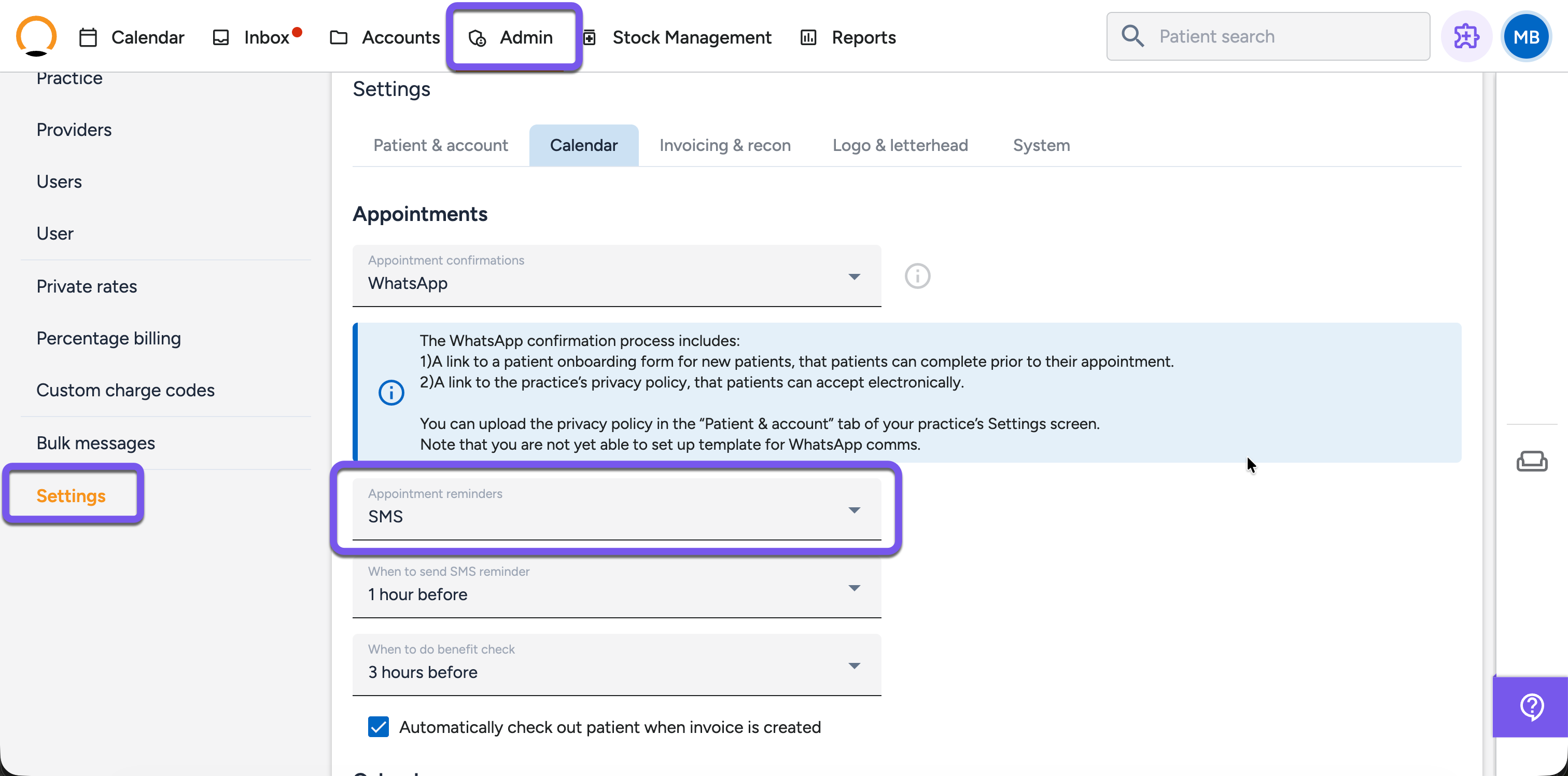
To switch you patient notification settins, navigate to "Admin", "Setting".
Select the "Calendar" tab and in the "Appointment reminders" drop-down select your preferred settings.
Frequently asked
Q: Does the patient need to download an app to join?
No. Clicking the join link opens the video call directly in their phone or computer's browser, nothing to install.
Q: When does the patient get the join link?
On the reminder SMS and email sent an hour before the appointment, not immediately when the appointment is booked.
Q: Can the patient join over WhatsApp instead?
Not currently, the reminder goes out by SMS and email only.
Q: What's the difference between 'Video consult' and 'Telehealth video' as a visit type?
They're two separate options in the same dropdown. Only 'Telehealth video' generates the join link and reminder flow covered in this guide.