
Practice Agent: WhatsApp Booking Links
How to Set Up WhatsApp Booking Links in Practice Agent
What: A Practice Agent feature that sends a patient a WhatsApp message with a "Book Here" link, letting them pick an open time straight from the doctor's Nova calendar.
Why: Cuts out phone tag, missed calls, and double-bookings: the patient books in a tap, and is told automatically if their booking can't go ahead.
When: When inviting a patient (for example one due for a chronic review) to book their own follow-up appointment.
What the patient experiences
The patient never needs to log in or install anything. The whole flow happens inside WhatsApp and a simple browser page.
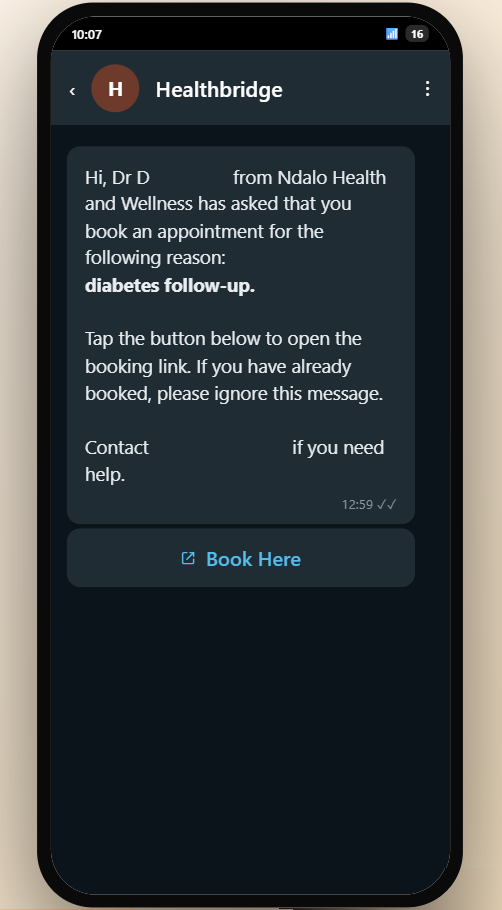
The patient gets a short WhatsApp from the practice explaining why they've been asked to book (for example a chronic review) with a 'Book Here' button.
Tapping 'Book Here' opens a booking page showing the practice, the doctor, and how many open slots are available that day. Times that have already passed or been taken are removed automatically.
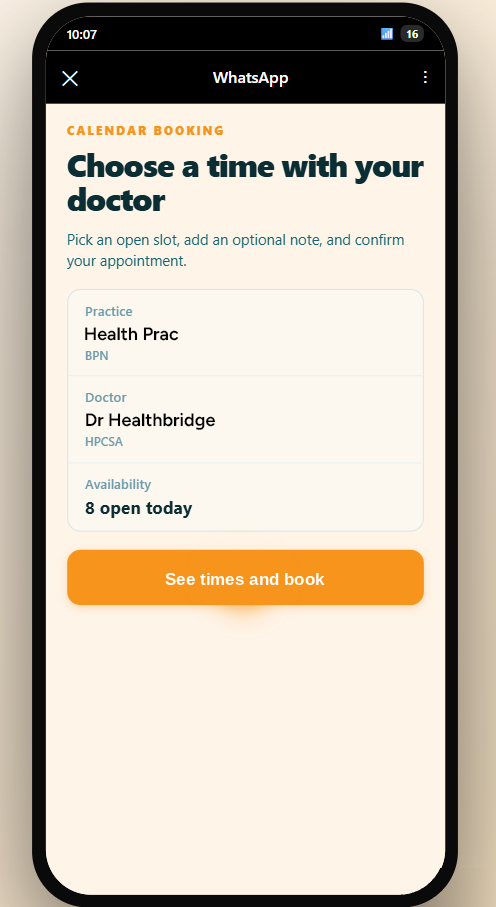
What the patient can and can't see: The patient only ever sees genuinely open time, never other patients, their appointment details, or who else is booked. The patient picks a time, adds an optional note, and taps 'Request slot'.
Turn on booking links
There are two switches, and both stay on once set. You only need to do this once per practice.
1. Confirm the Practice Agent Appointments add-on is active
Location: Admin › Add-Ons and Integrations › 'Practice Agent Appointments'
Healthbridge switches on the Practice Agent Appointments add-on for your practice. Under Add-Ons and Integrations it should show as Activated. Without this, bookings never reach the Nova calendar, no matter what's set up in Practice Agent.

Not showing as Activated?: Contact your Business Consultant before going any further. Booking links will not flow into Nova until this is on.
2. Open a card on the Practice Agent home page
Location: Practice Agent home page › click any card, e.g. 'Overdue chronic patients'
Click on any card (for example 'Overdue chronic patients'). The setting you're about to change applies to your details across every card, not just this one.
3. Click 'Message settings'
Location: card header › top right, click 'Message settings'
Click 'Message settings' in the header of the card.
4. Switch on the 'Booking links' toggle
Location: WhatsApp message settings panel › 'Booking links' toggle
In the 'Your details' panel, switch the 'Booking links' toggle on. Fill in the Practice name, Doctor name, and Contact number that should appear in every booking message, then click 'Save'.

Check the calendar before you enable this: Once on, patients can book any open slot on the doctor's Nova calendar. Only switch it on once unavailable time (leave, theatre lists, meetings, admin time) is properly blocked out. See Managing your calendar below.
Send a booking link
A booking invite can be sent from a care opportunity, a patient list, or by asking Practice Agent directly in chat.
5. Find the patient
Location: Daily Briefing care opportunity, a quick insight, or Practice Agent chat
Find the patient from a Daily Briefing care opportunity, a quick insight, or by asking Practice Agent about them directly in chat.
6. Ask Practice Agent for a booking invite
Location: Practice Agent chat
Ask, for example: "Send Mrs. Khumalo a booking link for a chronic review."
7. Review and approve the message
Location: Practice Agent chat › drafted message
Practice Agent drafts a personalised WhatsApp message with the booking link. Nothing is sent without your explicit approval. Review it, then approve to send.
You should see: the send appear in your "contacted this week" list, and the booking status update automatically as the patient and practice act on it.
Manage bookings on the Nova Calendar
This is the part that keeps bookings safe: the calendar is the only thing stopping a patient from booking a time that doesn't actually suit the doctor.
8. Block out unavailable time in advance
Location: Nova Calendar
Block leave, hospital rounds, theatre lists, meetings, lunch, and admin time as soon as you know about it, not on the day. Anything left open on the calendar can be booked by a patient.
9. Check 'Pending Appointments' daily
Location: Nova Calendar › toolbar › 'Pending'
New patient bookings made through a WhatsApp booking link land in the Pending Appointments list on the Nova Calendar, alongside any other appointment requests. Each one carries a Healthbridge booking icon so you can spot it at a glance.

What's next: Open a pending booking to accept or reject it, covered in the next two steps.
10. Accept a booking
Location: Nova Calendar › Pending Appointments › open the booking
Open the pending appointment on the calendar. The details the patient entered through the booking link carry across automatically under Details from Practice Agent, so there's nothing to retype. Check them, then click Save to confirm the appointment; this runs the usual medical aid benefit check. If the slot doesn't suit, click Reject instead.

If Nova can't find a matching patient: Use 'Create new patient using these details' on the same screen to create the patient record from what the patient entered, then click Save.

11. Reject any booking that doesn't suit
Location: Nova Calendar › Pending Appointments › click 'Reject' on the row
Click 'Reject' on any booking in a slot where the doctor isn't actually available, for any reason. There's nothing else to do after that. The patient is told automatically.
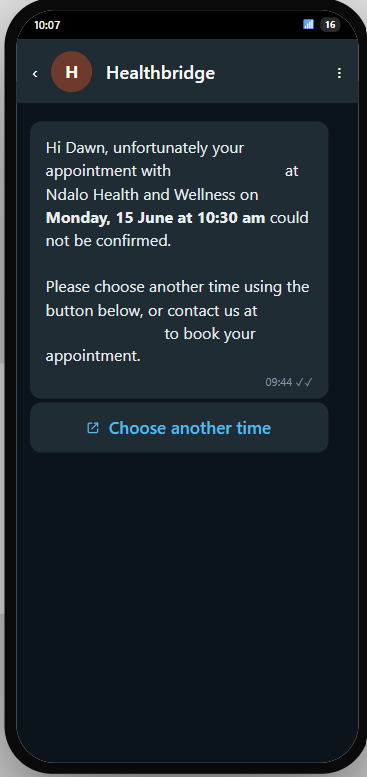
You should see: the patient receive a WhatsApp naming the doctor, the practice, and the exact time that couldn't be confirmed, with a button to choose another time and the practice's number if they'd rather call. Nobody at the practice needs to message them again.
What the patient sees | What it means |
|---|---|
Booked | The request is with your practice. It can still be rejected. |
Rejected by the practice | The request could not be approved. The patient is asked to choose another time or call the practice. |
Your workflows
Two people keep this running day to day: the doctor sends invites, and admin staff keep the calendar honest.
The doctor: sending an invite
- Pick the patient in Practice Agent and ask for a booking invite.
- Review the drafted WhatsApp and approve it. Nothing sends without your approval.
- The patient books an open time. The request appears in Pending Appointments.
- See the patient at the booked time. If it doesn't suit, admin staff reject it and the patient is asked to rebook.
Admin staff: every day
- Block out unavailable time before it can be booked. Anything left open can be booked by a patient.
- Check Pending Appointments on the Nova Calendar for new patient bookings, shown with the Healthbridge booking icon.
- Accept a booking by opening it and clicking Save, which runs the benefit check.
- Reject any booking that falls in a slot where the doctor isn't available. The patient is told automatically and invited to choose another time.
Good to know
- You approve every message. Nothing goes to a patient without your sign-off, and POPIA consent is checked before any message is sent.
- Branded to your practice. Patients see the message is from you, via the practice WhatsApp channel, not a scheme, an unknown number, or your personal mobile.
- Real availability only. Patients can only pick times you're genuinely open, and can't see other patients, appointment details, or who else is booked.
- Your calendar, your responsibility. Patients can book any open slot, so keeping unavailable time blocked out is what keeps this safe. Admin staff accept or reject each booking from Pending Appointments on the Nova Calendar.
- You keep control of the diary. Any booking can be accepted or rejected by your practice in your own calendar.
Pilot scope: what's live now: Available now: bookings land in Pending Appointments with a Healthbridge booking icon, admin staff can accept a booking (open it and click Save, which runs the benefit check) or reject it, and the automatic status update back to the patient works today. Coming next: booking links for new patients, and channels beyond WhatsApp.
Frequently asked
Q: Can patients see my other patients, or who else is booked?
No. Patients only ever see your open, available time, never other patients, appointment details, or who else is booked.
Q: What happens if a patient books a time the doctor isn't available?
Reject the booking from Pending Appointments on the Nova Calendar. The patient is told automatically and asked to choose another time.
Q: Does the patient know when we reject a booking?
Yes, automatically. They receive a message naming the doctor, the practice, and the time that couldn't be confirmed, with a button to choose another time and the practice's number.
Q: Can we accept or approve a booking?
Yes. Open the pending appointment, check the details that carried across under Details from Practice Agent, and click Save to confirm it. Saving runs the usual medical aid benefit check, and you can still click Reject if the slot doesn't suit.
Q: Who can accept or reject a booking?
Admin staff, from Pending Appointments on the Nova Calendar.
Q: How do we stop patients booking times we're not available?
Block the time out on the calendar. Anything left open can be booked.
Q: Can a patient book a time in the past, or a slot already taken?
No. Past times and slots that are already taken are removed automatically.
Q: Does the message come from our practice?
Yes. It's branded to your practice and sent via the practice WhatsApp channel, not a personal mobile number.
Q: Does the patient need an app or a login?
No. The link opens a simple booking page in their browser.
Q: Our calendar isn't set up correctly for this. Who can help?
Your Business Consultant. They'll help set the process up correctly, including how to block out unavailable time and work Pending Appointments, and can confirm the Practice Agent Appointments add-on is active, which is required for bookings to reach the Nova calendar at all.