
Purchase Orders (PO's) and Receiving
This guide streamlines the creation of purchase orders (POs) for suppliers, initiating the stock-receiving process. Generate POs from supplier invoices. Receive Stock using the Process full, partial, or damaged stock via the receiving tab, integrating items into dispensing or quarantine bins.
POs and Receiving
This is where you create purchase orders (POs) for suppliers. It’s the first step in the stock-receiving process:
- Create a PO using your supplier’s invoice
- When stock arrives, use the Receiving tab to process it
- You can fully receive it, part-receive it, or fail it due to damage This process adds received items into your dispensing bin or quarantine.

Steps to Create Purchase Orders
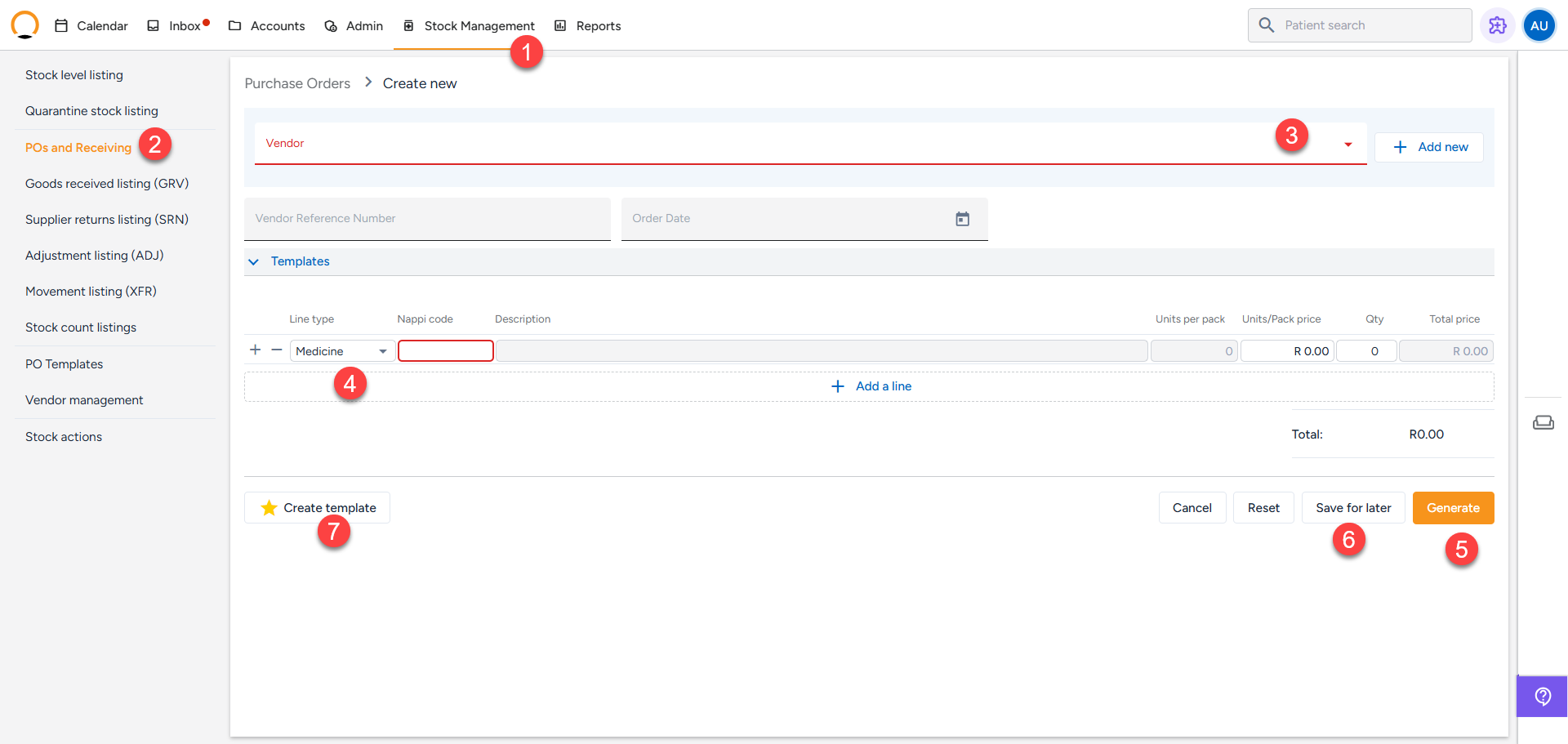
- Navigate to the "Stock" Tab.
- Select "POs and Receiving"
- Select a Vendor or add a new one.
- Add stock items (use dropdowns to select item complete the required units, qty).
- Click on "Generate" to save the purchase order.
- The user also has the option for pause the purchase order by using the "Save for Later" option.
- The practice/user can also use the Purchase order and "Create Template" for quick and easy use for future orders.
Steps to Receive Stock
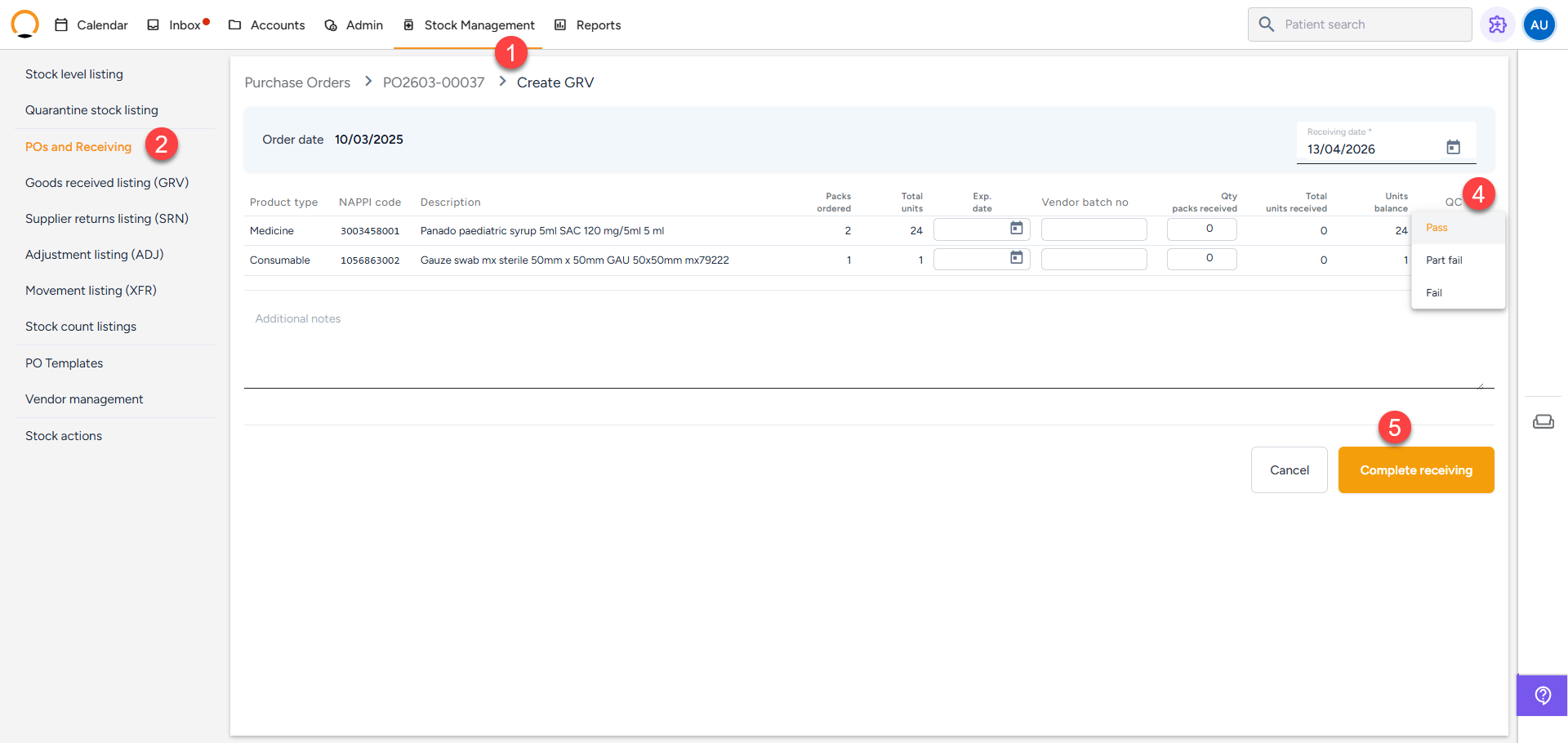
- Navigate to the Stock.
- Select "POs and Receiving" option.
- Select the purchase order related to the stock delivery
- Validate/check the stock that has been received in the "QC" section the user can "Pass/Fail/Part Fail."
- Finalize the Purchase order by selecting "Complete Receiving".
- Received items are added to your Dispensing Bin for use within the practice. Failed items are added to your Quarantine bin for further intervention (Supplier return).
How to Create Purchase Order Templates.