How to capture a payment
In Healthbridge Nova, you can capture a patient payment using two main methods: either through the Inbox (Collections) or directly from the Patient's Account. Here is the step-by-step process for both:
Method 1: Capturing a Payment via the Inbox (Collections) This method is ideal for following up on and settling outstanding patient-liable balances.
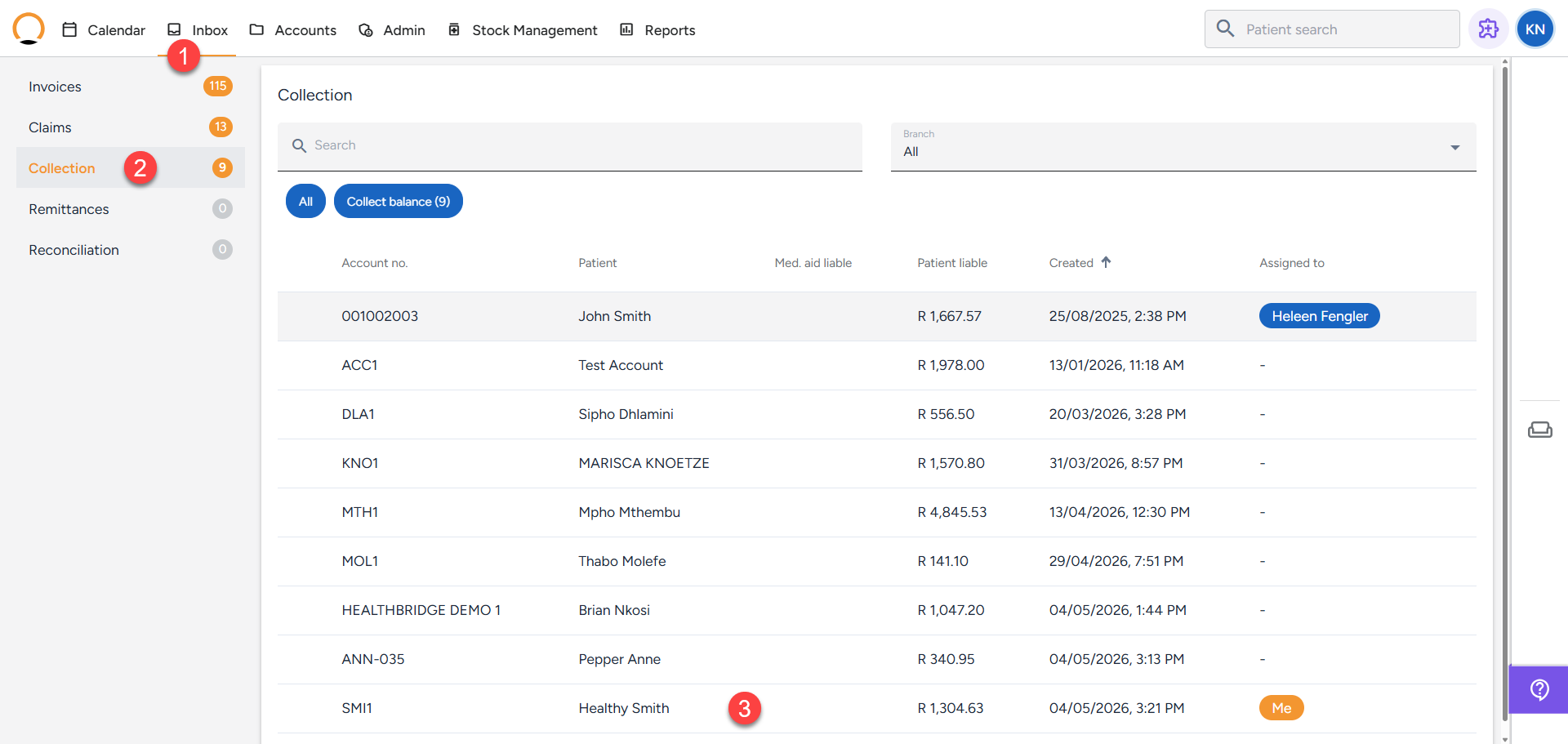
- Log in to Healthbridge Nova and navigate to the 'Inbox' tab.
- Click on the 'Collections' menu option.
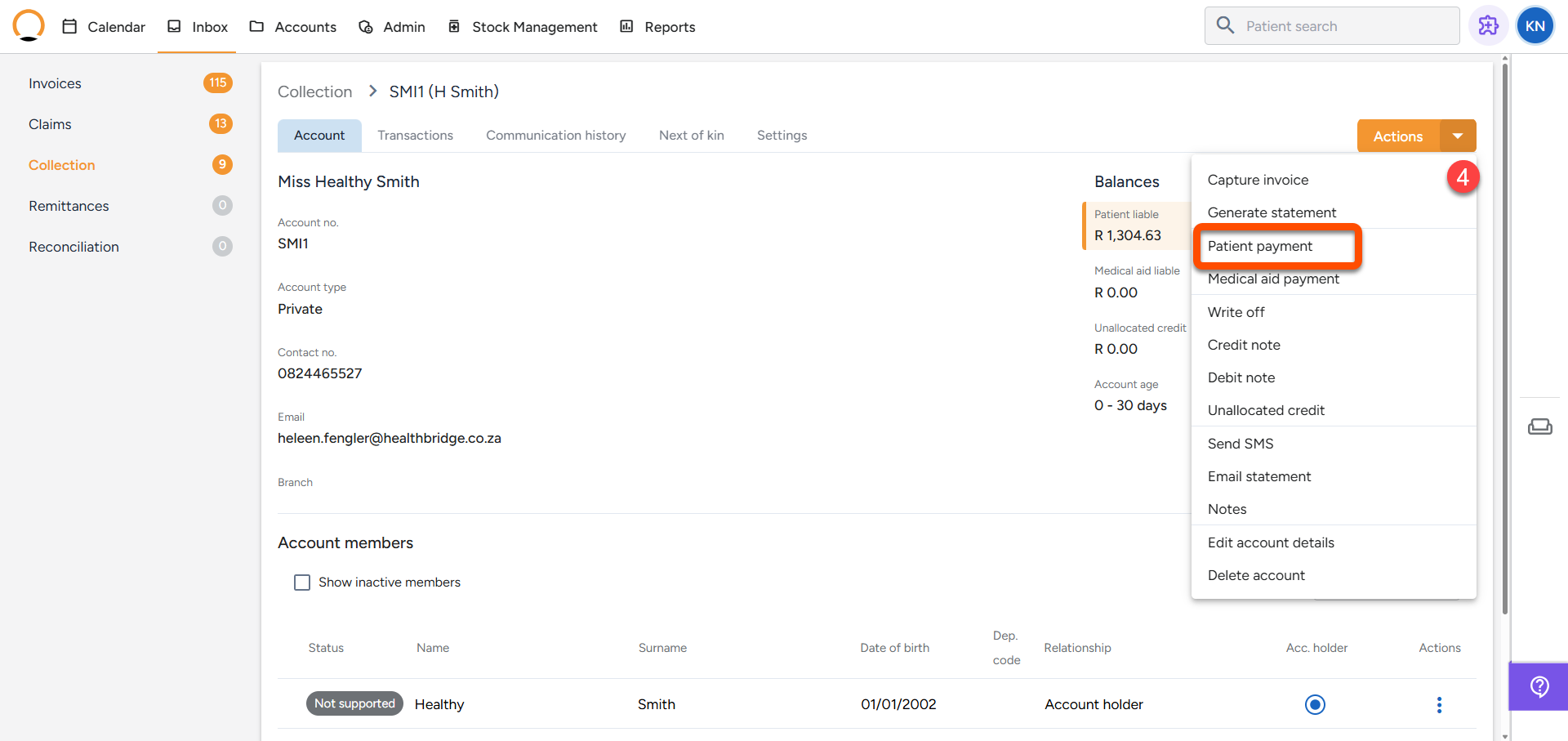
- Locate the patient's outstanding balance and click on the item you would like to action.This will directly open the patient's account details.
- From the "Actions" tab select ' Patient Payment' action from the available options.
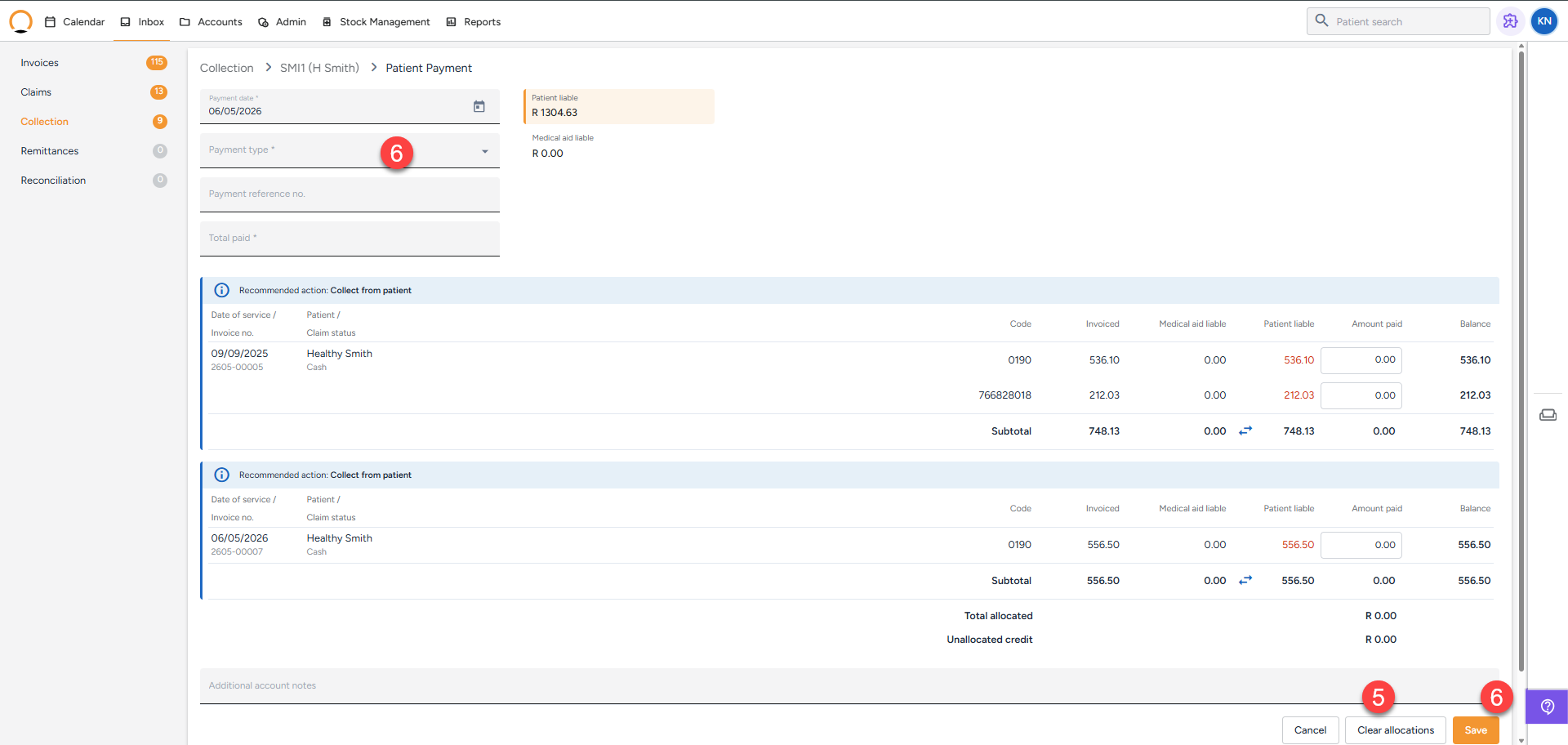
- If there are multiple invoices outstanding the user must "clear allocation" and allocate the payment to the correct invoice line.
- Enter the payment details and "Save" to update the balance refelected on the account.
Method 2: Capturing a Payment via the Patient's Account This method is useful if you are already managing a patient's file or processing a walk-in cash payment after a consultation.
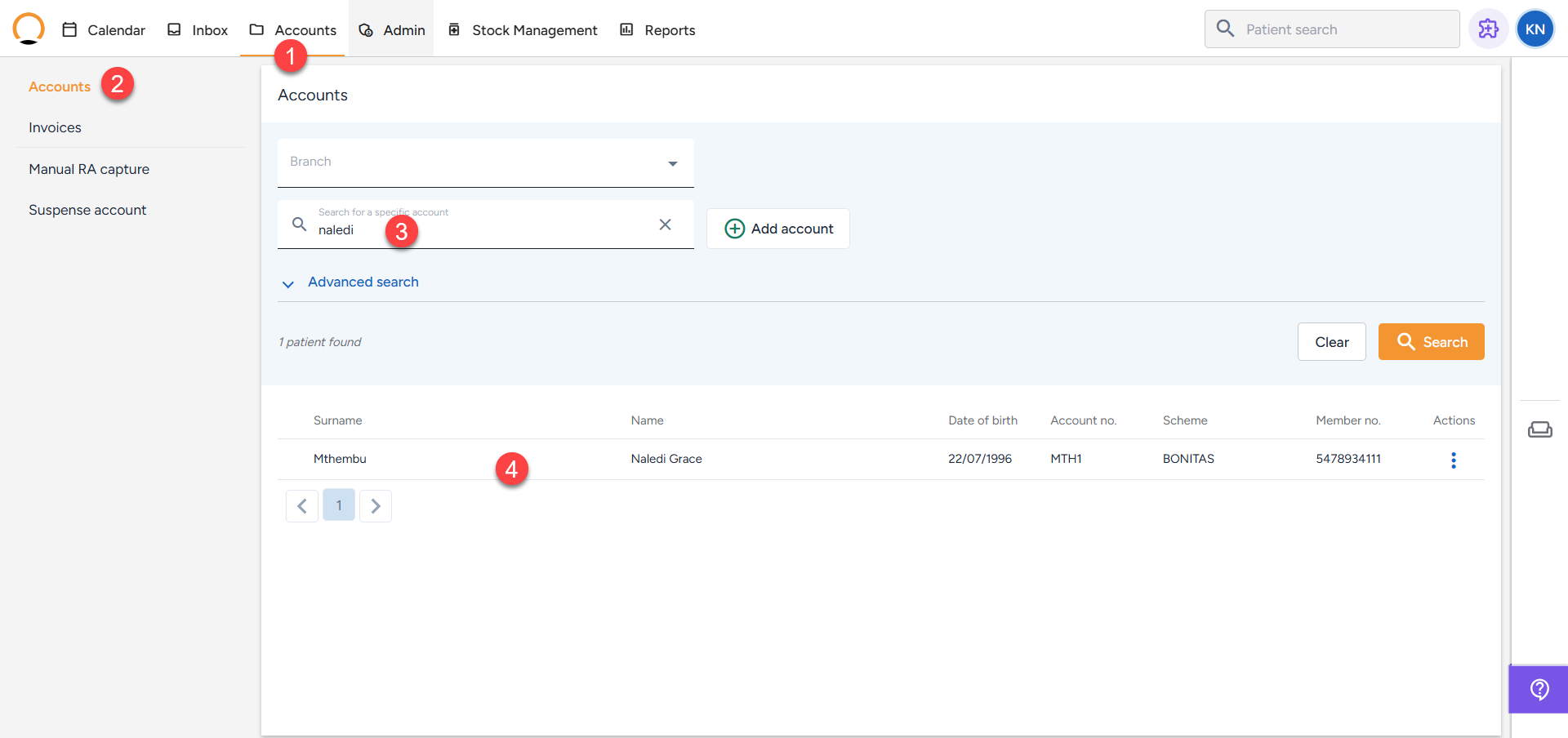
- Navigate to the 'Accounts' tab from the main menu.
- Click on 'Accounts' in the left-hand panel and use the search bar (by name, account number, or other identifiers) to locate the patient.
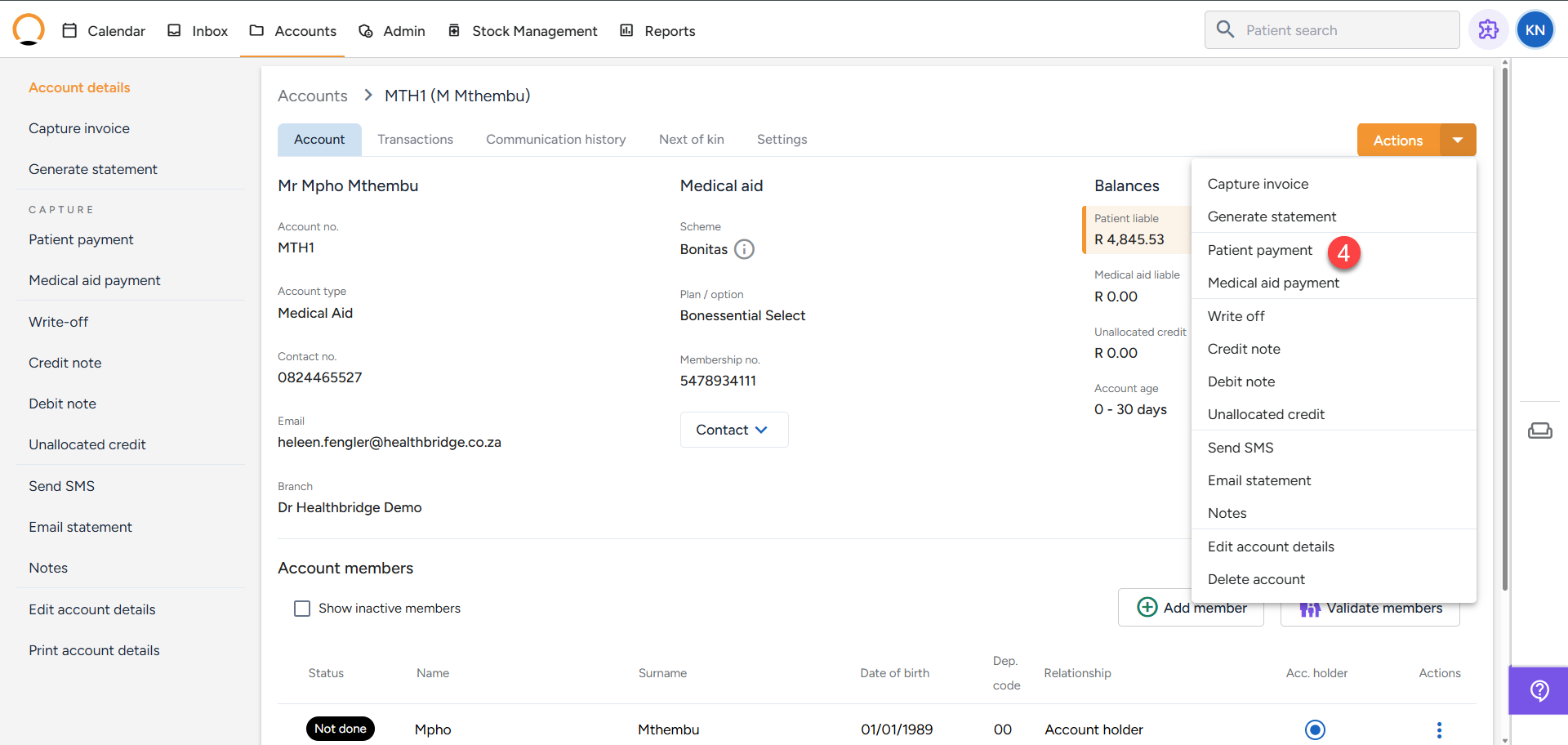
- Click on the patient's name to open their account details.
- Choose the action of "Patient Payment".
- If there are multiple invoices outstanding the user must "clear allocation" and allocate the payment to the correct invoice line.
- Enter the payment details and "Save" to update the balance refelected on the account.