
Vendor Management
In the Healthbridge Nova Stock Module, Vendor Management acts as your centralized digital address book for all your medical suppliers. Setting up your vendors is a mandatory first step—you must register a supplier in this section before you can create a Purchase Order (PO) or initiate a Supplier Return Note (SRN) for them.
Step-by-Step: Adding a New Vendor
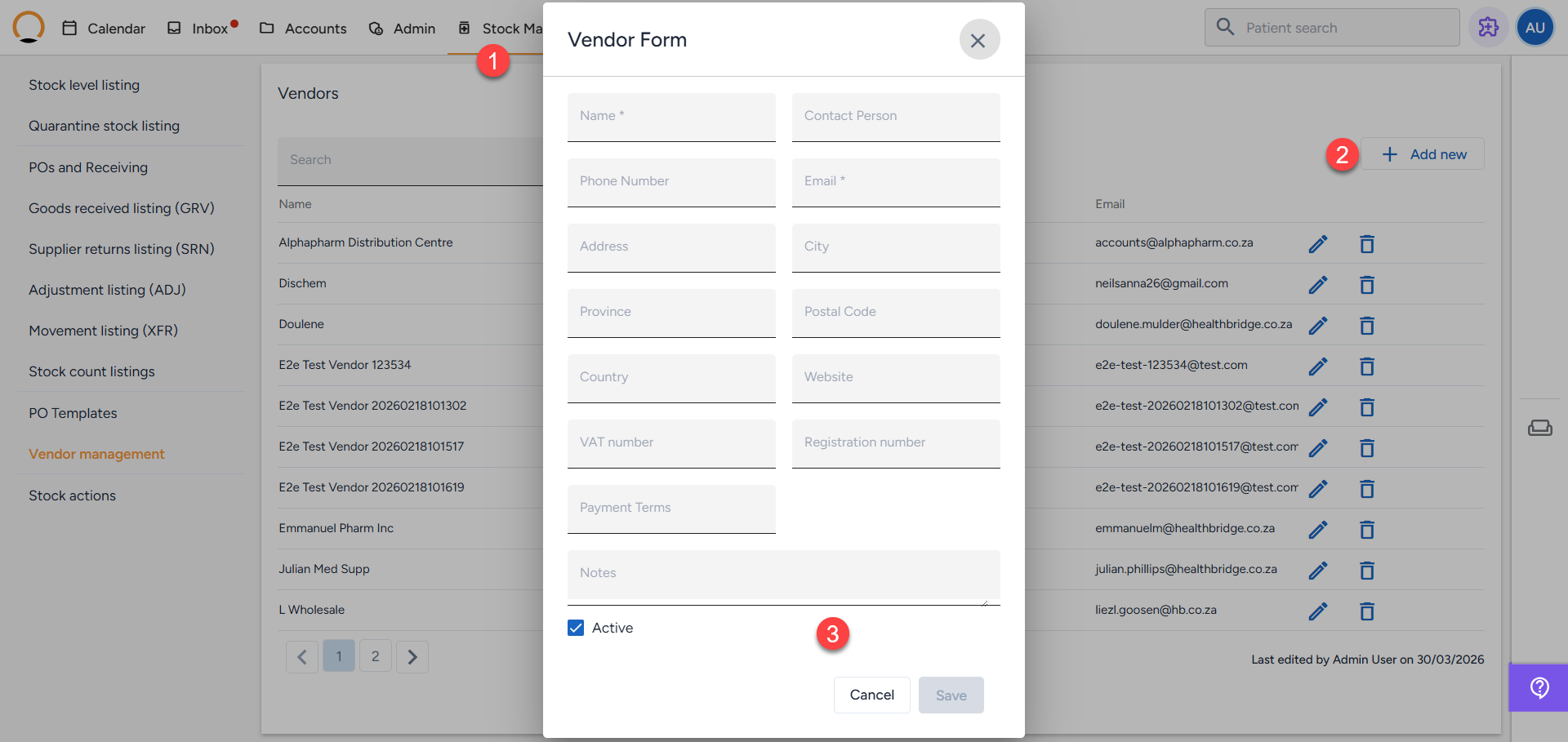
- From the top navigation bar, click Stock Management and select Vendor management from the left-hand menu.
- Click the + Add new (or Add Vendor) button.
- In the form, enter the relevant information for the supplier. Click Save to finalize the profile.
- Vendor name
- Contact person
- Phone number and Email address
- Default Delivery/Payment Terms (e.g., "on credit 30 days")
- VAT number (if applicable) and any Special Notes for the supplier .
Once saved, this vendor will instantly become available in dropdown menus across the system whenever you need to order or return stock. (Note: You can also add a new vendor directly from the PO creation screen by clicking 'Add new' next to the vendor dropdown).
Editing or Deleting a Vendor
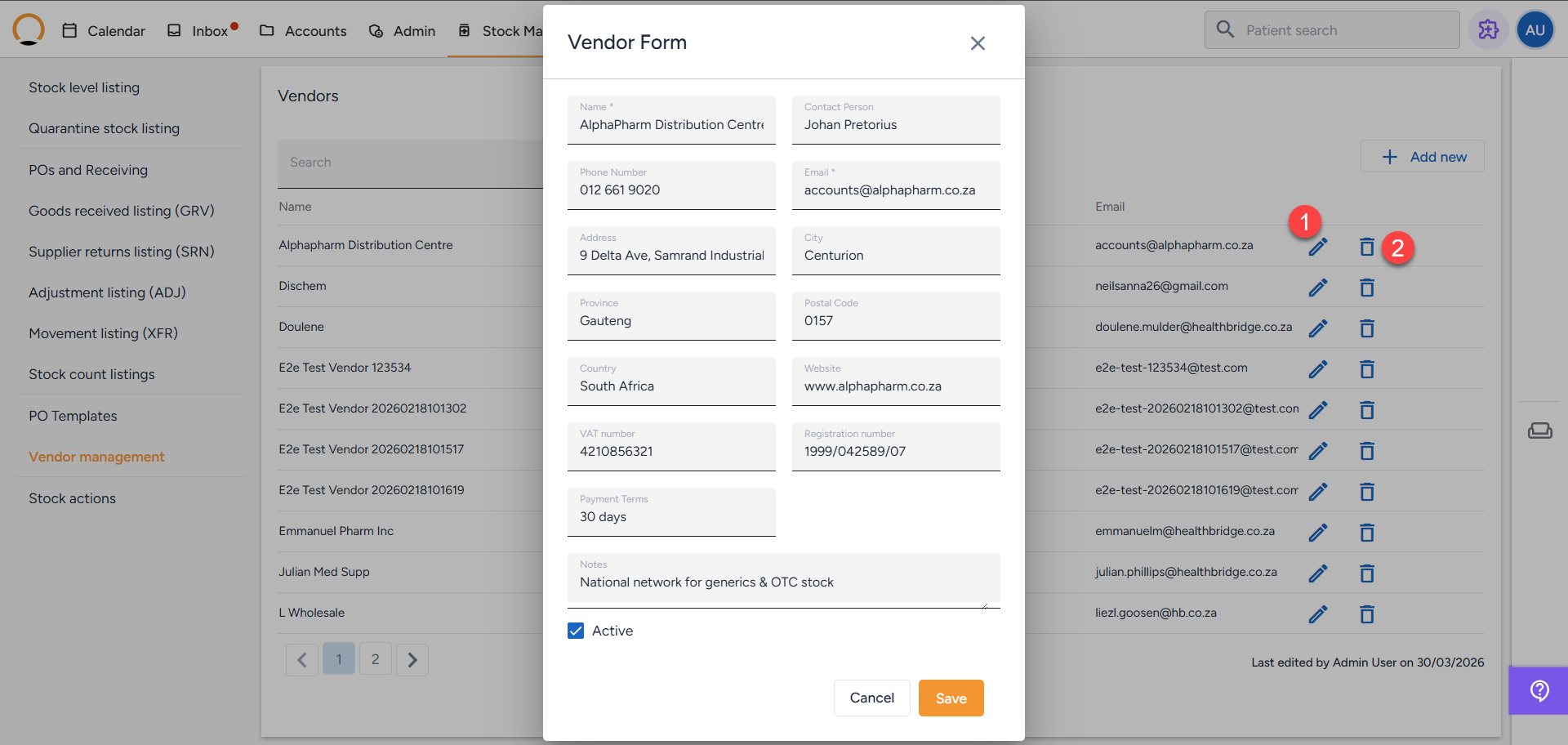
If a supplier's contact person changes, or you stop doing business with them, you can easily update your records from the same Vendor Management screen:
- To Edit: Find the vendor on your list and click the pencil icon to update their details.
- To Delete: Click the trash icon next to the vendor to completely remove them from your list.
Always ensure your vendor email addresses and contact numbers are kept up-to-date. Because this database links directly to your ordering and return workflows, having accurate contact info prevents delays when you are trying to send out a Purchase Order or follow up on a pending SRN.